



You can import your login data from Apple’s Passwords app into ExpressKeys using your Mac or iOS device.
Once your passwords are imported, you can use ExpressKeys to review your password health, identify weak or reused passwords, and update them to improve your security.
Jump to…
Import your Passwords data using your iOS device
To import your Passwords data using your iOS device:
- Open the Passwords app.
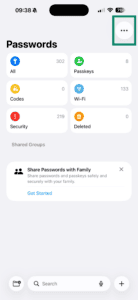
- Tap

 .
.

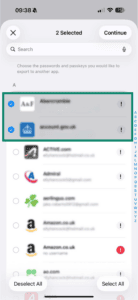
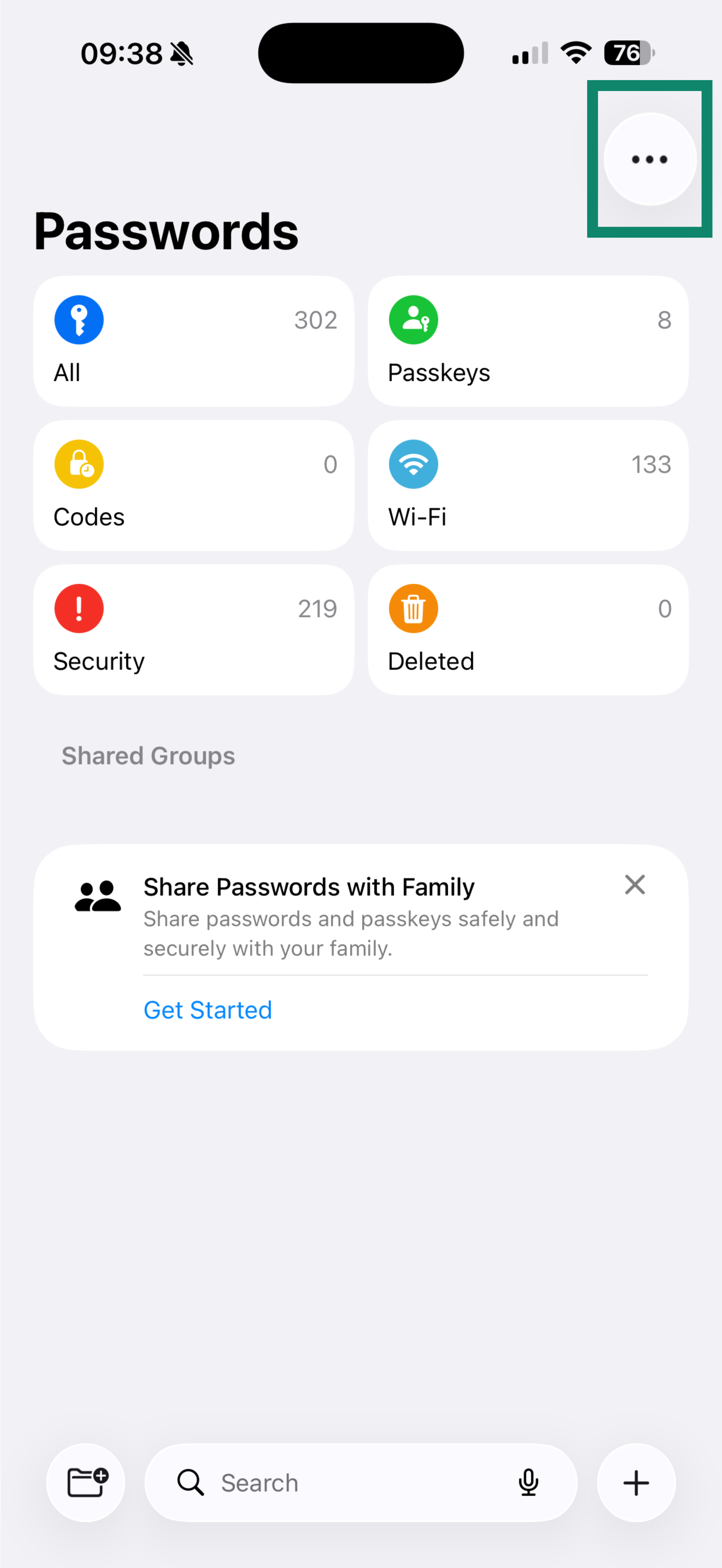
- Tap Export Data to Another App.

- Select the entries you want to export, or tap Select All to import all passwords.
- Tap Continue, then tap Continue again.
- Select ExpressKeys from the list, then tap Continue.

- Tap Continue in ExpressKeys.
- Wait for the app to import your passwords, then tap Continue.

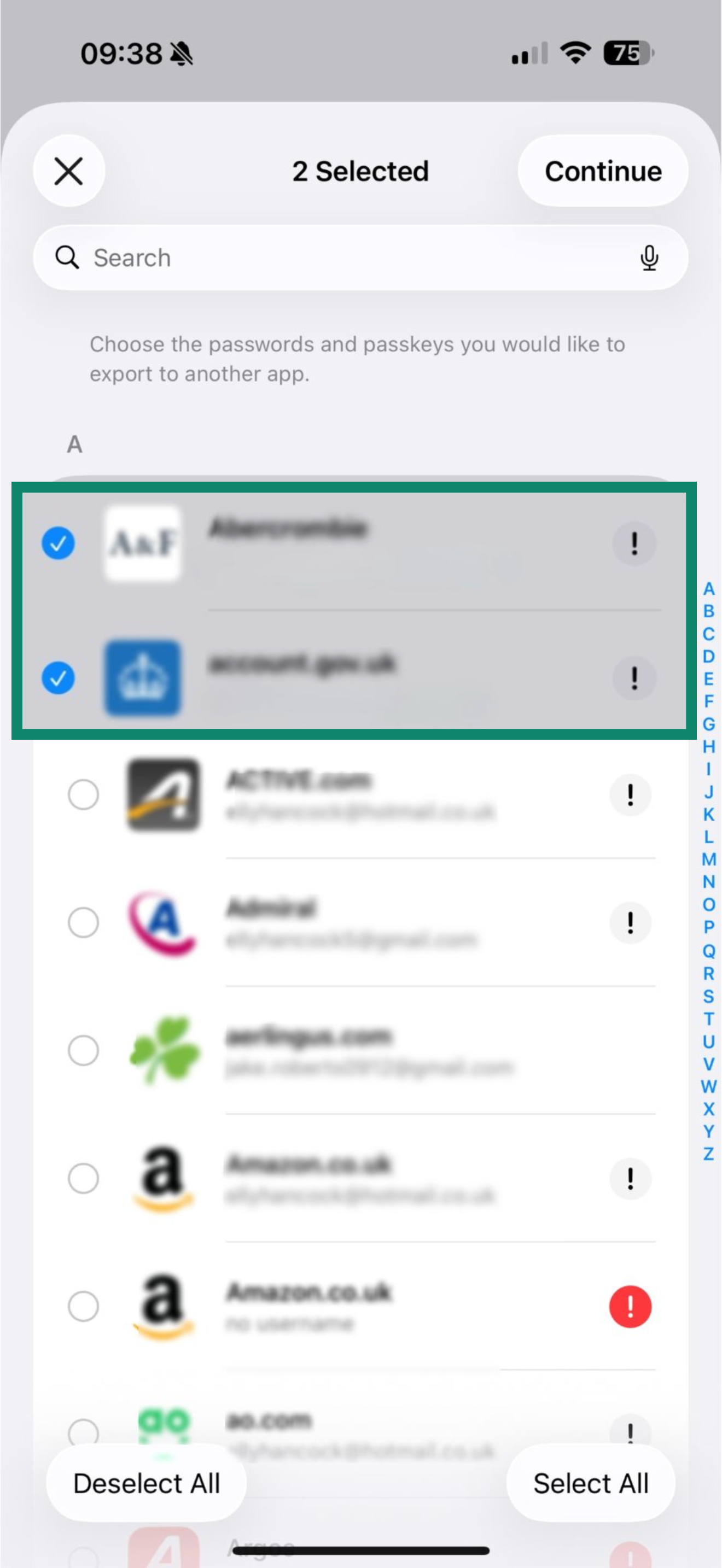
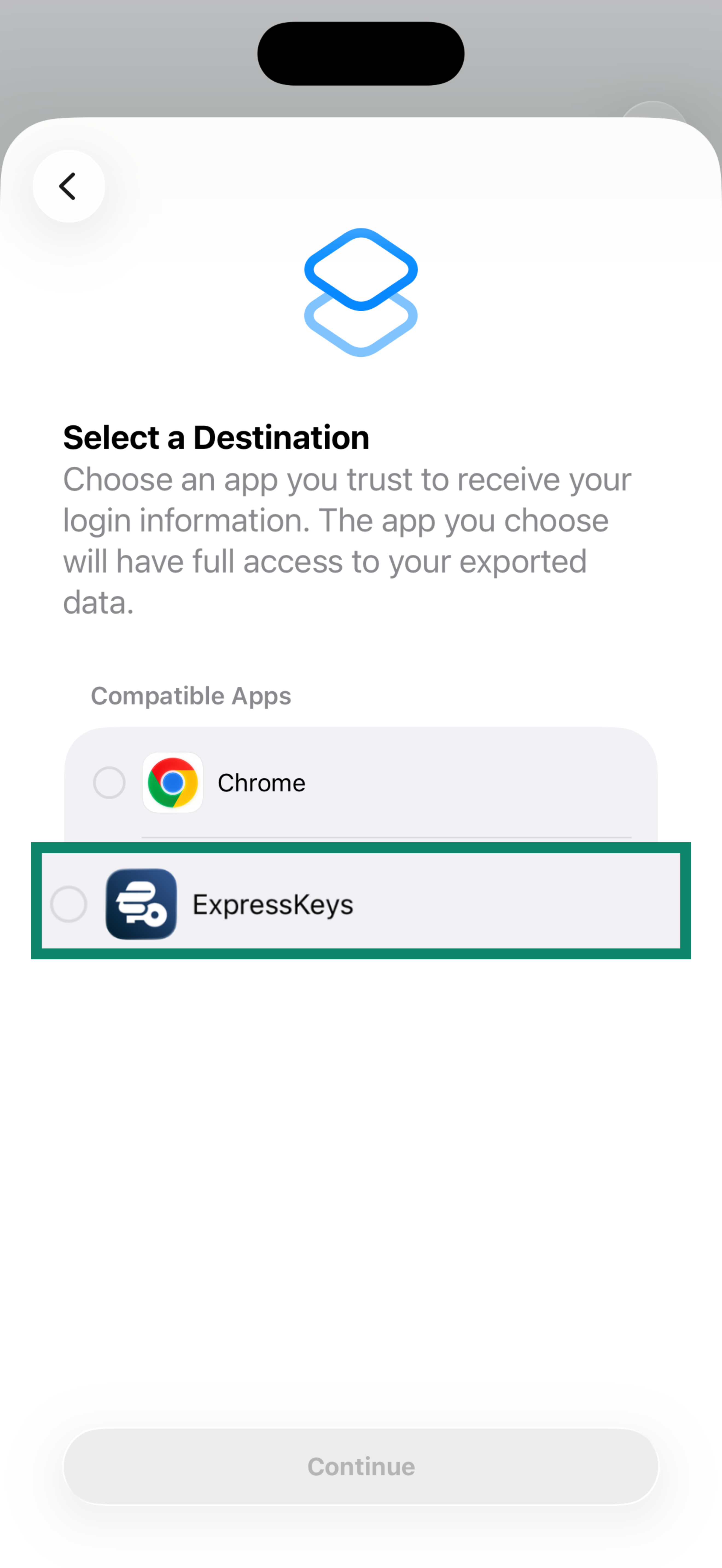
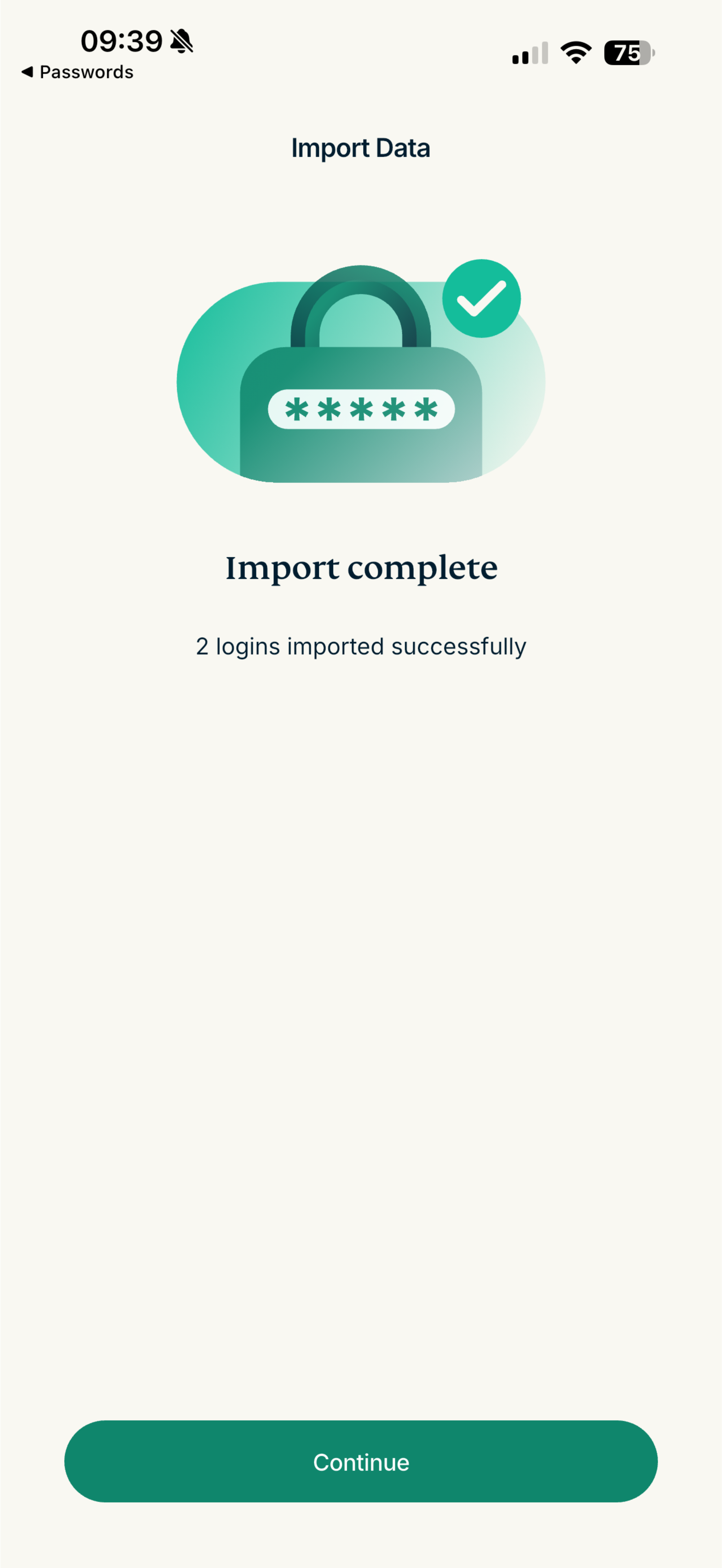
Once your passwords are imported, you can use ExpressKeys to review your password health, identify weak or reused passwords, and update them to improve your security.
Need help? Contact the ExpressVPN Support Team for immediate assistance.
Import your Passwords data on Mac (CSV method)
1. Export your logins from Passwords
Depending on your Mac version, follow these instructions:
- Open the Passwords app.
- If you only want to export certain logins, select them. You can do this by holding Command and clicking on the logins you’re exporting.
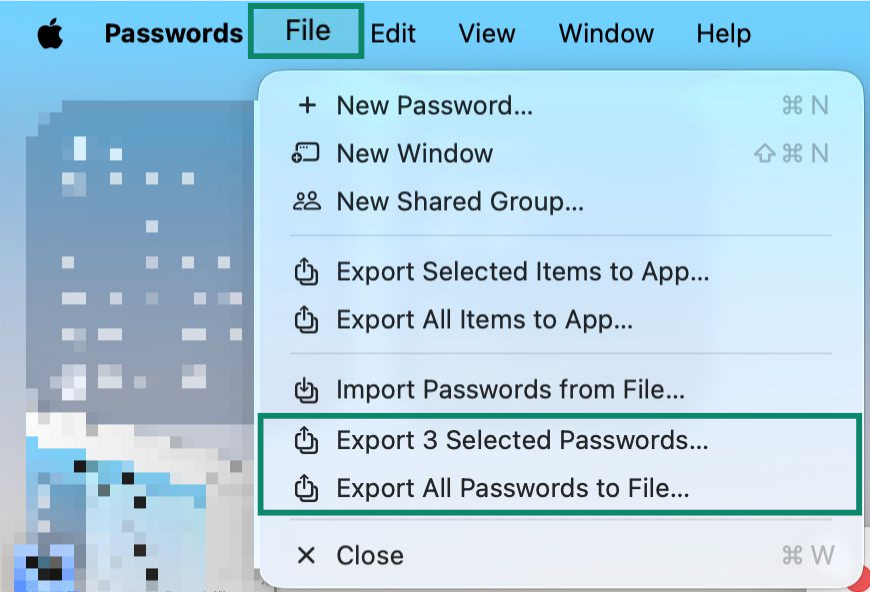
- In the menu bar, click File and choose either Export Selected Passwords (if you’re only exporting selected logins) or Export All Passwords to File.
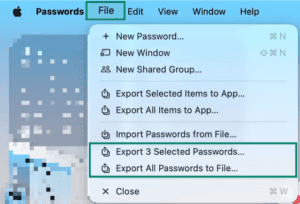

- Authenticate with Touch ID or your Mac admin password when prompted, choose where to save the file, and click Export Passwords.
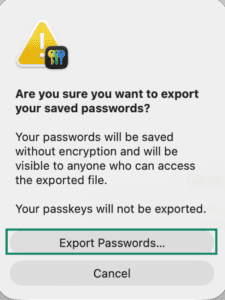

- Choose a place to save the file and click Save. Keep in mind that this won’t export your passkeys, as the Passwords app doesn’t allow that.
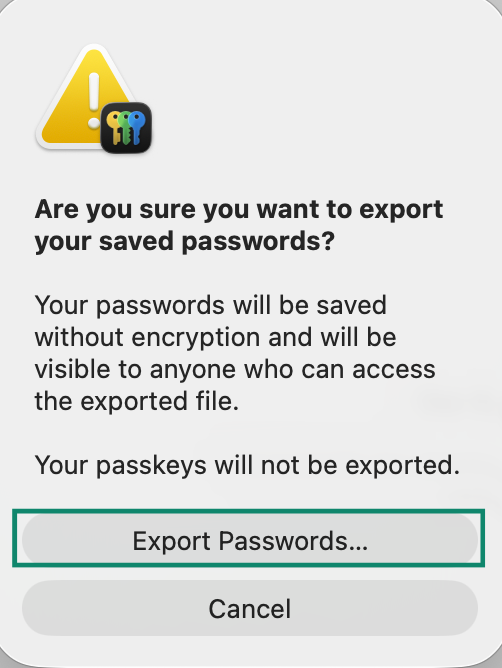
Note: The exported file contains all your passwords in plain, unencrypted text. Anyone who can access the file can read every password. You should delete it immediately after importing.
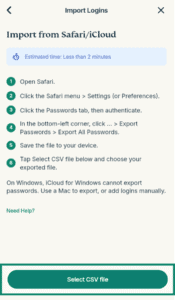
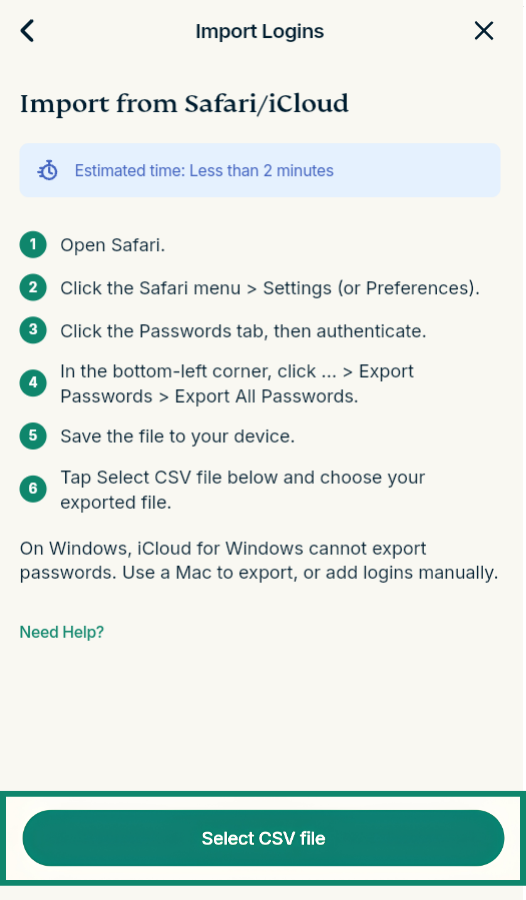
- Open Safari.
- Click the Safari menu > Preferences…
- Click the Passwords tab, then authenticate if required.
- In the bottom left corner of the sidebar, click … > Export Passwords > Export All Passwords.
- Save the file to your device.
Note: The exported file contains all your passwords in plain, unencrypted text. Anyone who can access the file can read every password. You should delete it immediately after importing.
Earlier macOS versions don’t support exporting logins and passwords from Apple iCloud Keychain. To import logins into ExpressKeys, you can manually copy the logins saved in Safari and paste them into ExpressKeys.
2. Import your logins into ExpressKeys
On macOS, ExpressKeys is available as an extension for Chrome (also compatible with Chromium-based browsers like Edge, Brave, Opera, and Vivaldi). You can import your data from Passwords using a CSV file.
- Install the ExpressKeys browser extension for Chrome.
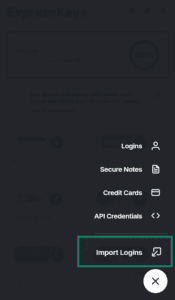
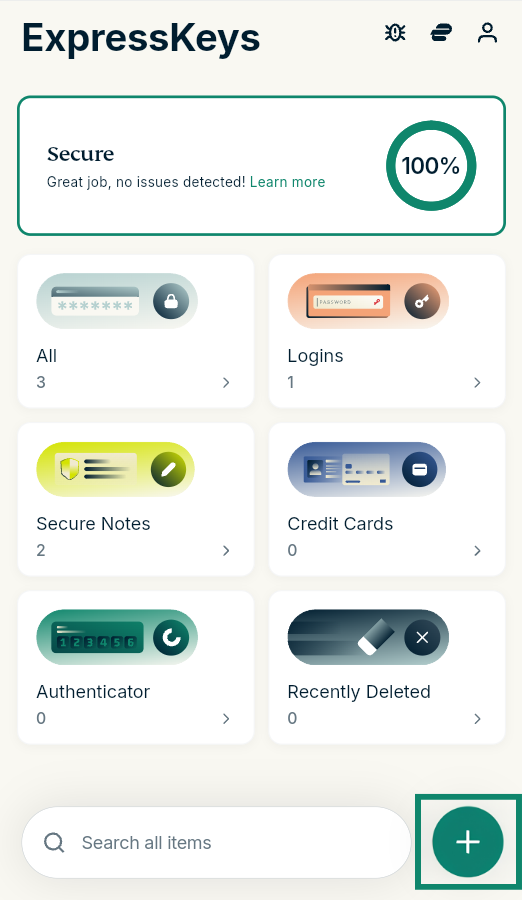
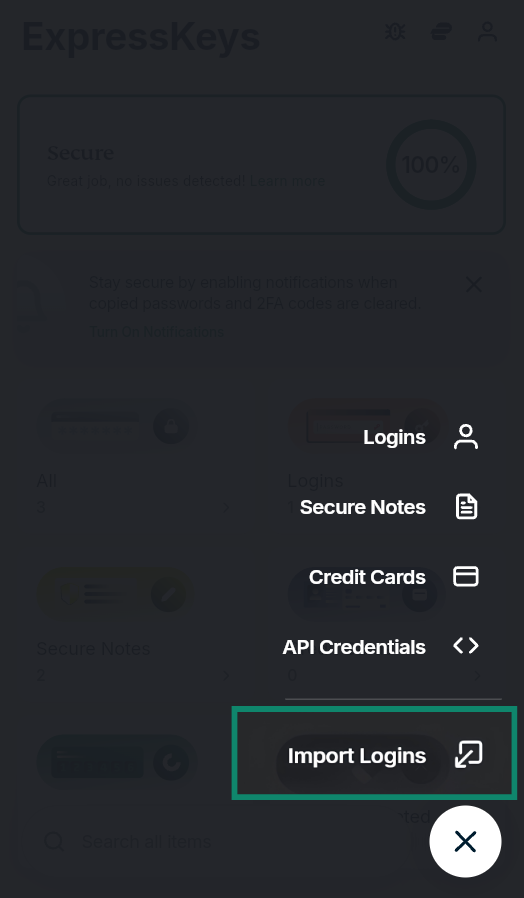
- Open the extension and click the plus (+) icon.
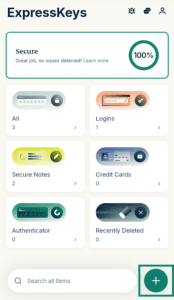

- Select Import Logins.

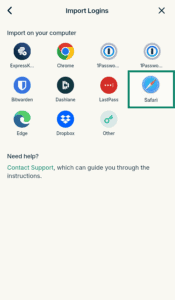
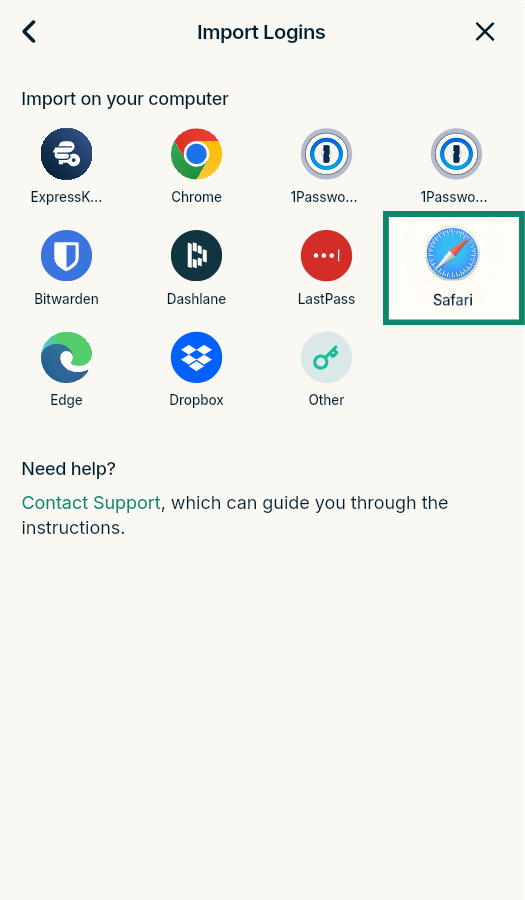
- Select Safari.
- Click Select CSV file and select the CSV file you exported from Passwords.

- Wait for the import to finish.
Need help? Contact the ExpressVPN Support Team for immediate assistance.
Import your Passwords data using your Android device
There is no way to export or access your Passwords data directly from an Android device. There is no Passwords app for Android, and iCloud.com on the web does not provide access to your saved logins either.
To import your Passwords logins into ExpressKeys on Android, you can:
- Use a Mac, iPhone, or iPad to import your logins: Follow the iOS or Mac instructions above to import your logins into ExpressKeys. Once imported, your logins will automatically sync to ExpressKeys on your Android device.
- Manually add your logins on Android: If you only have a few logins to transfer, you can manually add your logins to the ExpressKeys for Android.
Need help? Contact the ExpressVPN Support Team for immediate assistance.
Import your Passwords data using your Windows device
On Windows, you can’t export your logins from the Passwords app. Depending on your situation, you have two options:
- If you also have a Mac: Install the ExpressKeys app for macOS or the browser extension on your Mac, then follow the Mac instructions above to export your passwords from the Passwords app and import them into ExpressKeys. Once imported, your logins will be available across all your devices.
- If you do not have a Mac: You can copy and paste your logins from the iCloud Passwords browser extension on Windows and add them to the ExpressKeys extension one by one.
Need help? Contact the ExpressVPN Support Team for immediate assistance.