
How to find deleted messages on iPhone and retrieve them



Deleted messages on an iPhone don’t always disappear the moment you remove them. Depending on timing, settings, and backups, they may still be recoverable on your device, through sync, or in a backup. The challenge is knowing where to look and which recovery method applies before data gets permanently deleted.
This guide breaks down reliable ways to find and retrieve deleted messages, from quick in-app recovery to backup restoration and last-resort options like restoring your phone from a backup. Each method focuses on a specific scenario, so you can act quickly.
Where deleted messages go on iPhone
When you delete a message on an iPhone, the Messages app moves it to the Recently Deleted folder instead of removing it right away. This folder holds deleted messages for up to 30 days, giving you a limited window to recover them directly inside the app.
If you have Messages in iCloud turned on, deleting a message on one device syncs that deletion across all your Apple devices signed into the same Apple ID. The deleted message moves to the Recently Deleted folder, where it can be recovered using any of your devices.
However, if Messages in iCloud is turned off, your devices may not be fully synced. In that case, a copy of the message may still exist on another device, such as an iPad or Mac.
Note: The Recently Deleted folder was introduced with iOS 16. If you are using an earlier version of iOS, retrieving a deleted message may require restoring your phone from a backup.
Where else can messages be stored?
In addition to Recently Deleted, a copy of a message may exist in a backup created before deletion:
- iCloud Backup: If your iPhone automatically backs up to iCloud, an older backup may contain messages that you have since deleted. This is separate from iCloud sync; it's a full snapshot of your phone taken at a point in time.
- Computer backup (Finder or iTunes): If you've ever backed up your iPhone to a Mac or PC, that copy may also contain deleted messages, if the backup was made before the deletion happened.
How to find and restore deleted messages in Recently Deleted
If your messages were deleted recently, you can locate them directly inside the Messages app.
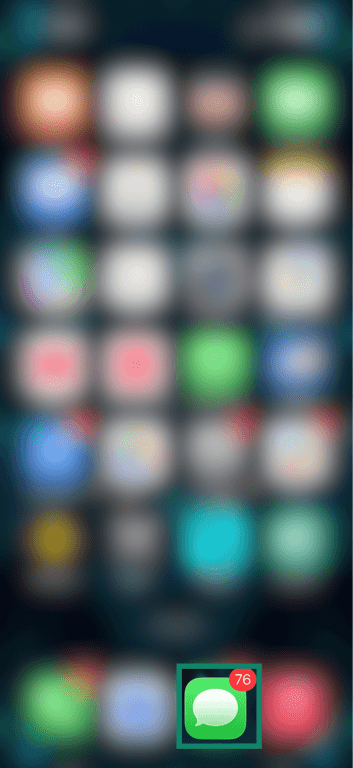
- Launch Messages from your Home Screen.
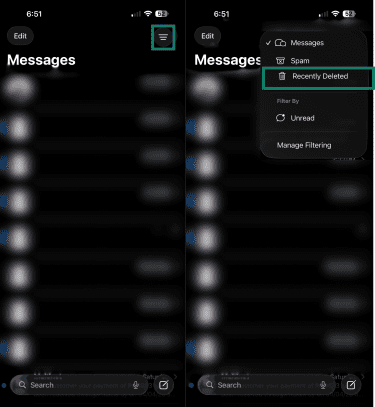
- Tap the three horizontal lines on the top right. In the drop-down menu, tap Recently Deleted.
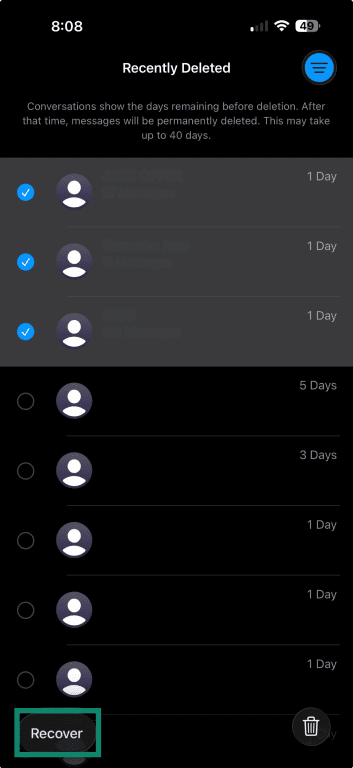
- To retrieve messages, select them and tap Recover. Your iPhone will move the selected messages to the main Messages folder.
How to restore deleted messages from iCloud Backup
Restoring from iCloud Backup involves erasing all content to revert your iPhone to a previous state. This backup will replace everything currently on your device with the data from that backup, so any messages, photos, apps, or other changes that you make after the backup date will be lost.
For this method to work, a backup must have existed when the deleted message was still on your phone. There is no way to recover a message through this method if no such backup exists.
Important: If you have Messages in iCloud turned on, your messages automatically sync to iCloud, but they’re not included in iCloud Backup. In that case, whether your deleted messages get recovered or not depends on whether they’re still stored iniCloud.
How to check your last iCloud Backup date
Before doing anything else, check when your last backup was made and whether it could predate the deletion.
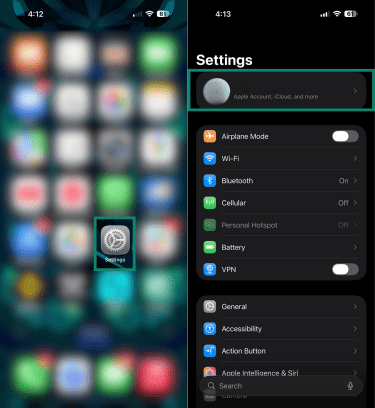
- Open Settings and tap your name to access iCloud.
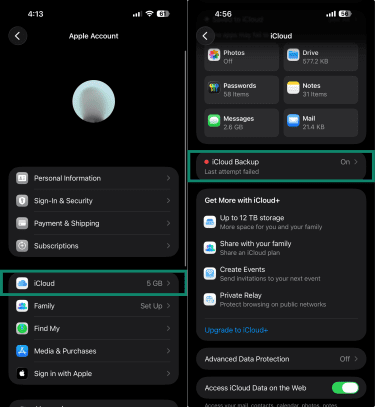
- Tap iCloud, then iCloud Backup.
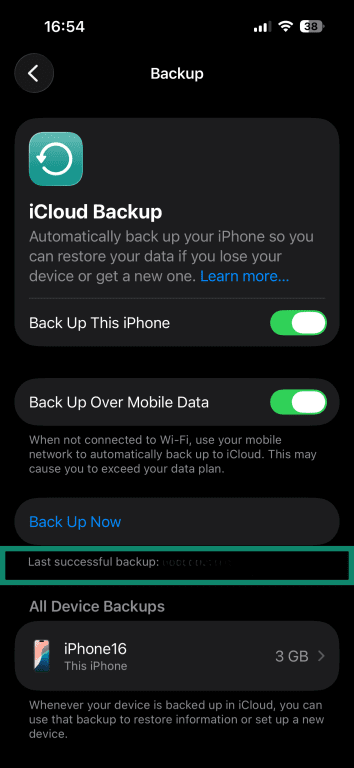
- You can see the date and time when the last backup occurred next to the label Last successful backup.
How to choose the right backup
If that date is after you deleted the message, the backup already reflects the deletion, and restoring from it will not recover the message. If the date is before the deletion, there is a chance that a usable backup exists.
Unfortunately, you can’t review your backup options until you’ve already started the restore process.
How to erase your iPhone and restore messages
If you believe a backup with a copy of the messages you want to restore exists, you can proceed to erase your iPhone. To do that:
- Go to Settings, tap General, then Transfer or Reset iPhone.
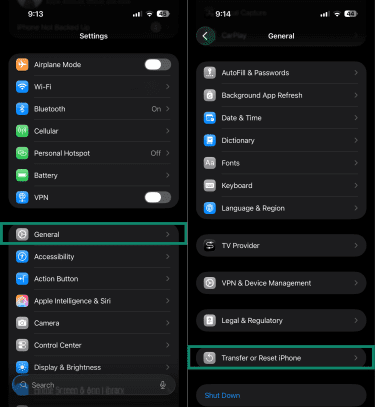
- Tap Erase All Content and Settings. Then, tap Continue and wait for the iPhone to erase and restart.
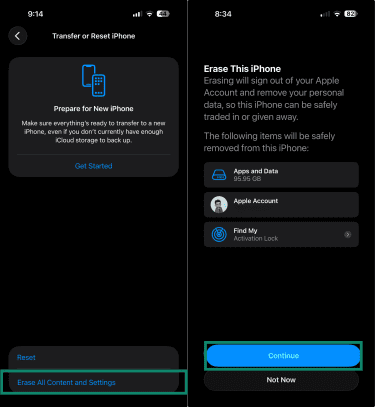
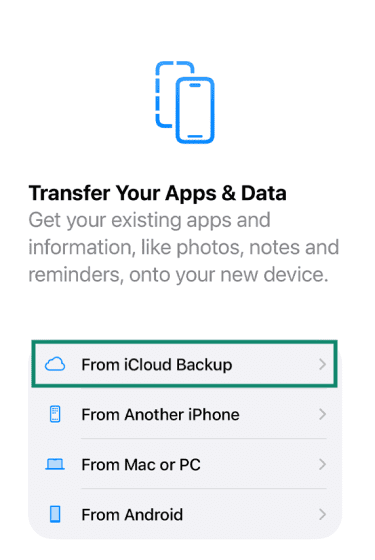
- When the Hello screen appears, follow the setup steps until you reach Transfer Your Apps & Data, then tap From iCloud Backup.
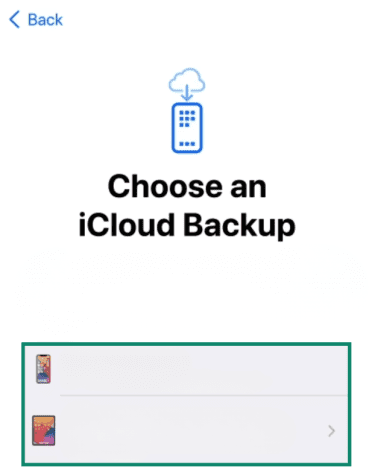
- Sign into your Apple ID (now known as Apple Account). A list of available backups should appear, each showing its date and size. Select the one made before the message was deleted.
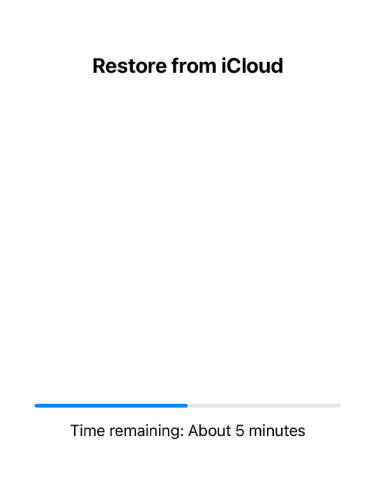
- Wait for the restore process to complete. Keep your iPhone connected to Wi-Fi while the progress bar finishes.
After the process completes, open Messages and check whether the deleted messages have been restored. Some messages may load right away, while others may need more time to download in the background, especially if you use Messages in iCloud.
How to recover deleted messages from a computer backup
If you've previously backed up your iPhone to a Mac or PC, that backup may contain deleted messages. Unlike iCloud Backup, computer backups give you one important advantage: you can see a list of your backups before you do anything to your phone. This may give you a better idea of whether a usable backup exists, since you can see the dates that the available backups were created.
As with backing up with iCloud, this only works if the backup was made at a time when the deleted message was still on your phone. Restoring from a computer backup also replaces all current data on your iPhone with the contents of that backup.
Using Finder on a Mac
Start by confirming that a local backup exists and that its date lines up with when the messages were still on your device. Next, follow these steps:
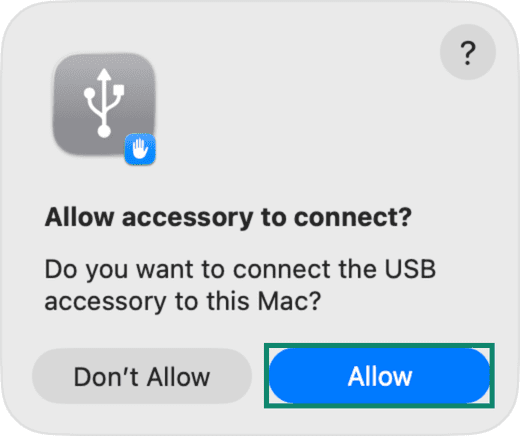
- Open Finder and connect your iPhone to your Mac via a USB cable. Unlock your device and approve any Trust This Computer prompt.
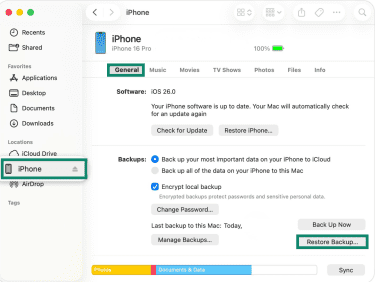
- Click on your iPhone in the sidebar under Locations, then click Restore Backup in the General tab.
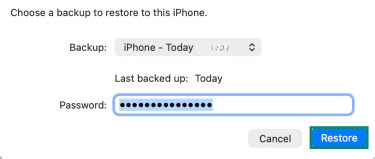
- Select the correct backup from the list. If the backup is encrypted, enter the password when prompted, then click Restore.
- Wait for the process to finish. Keep your iPhone connected after it restarts and don't disconnect until syncing completes.
Using Apple Devices on Windows
To restore a backup on Windows, plug your iPhone into your Windows PC.
- Open Apple Devices and unlock your phone. Select your iPhone in the sidebar, then General, and click Restore backup.
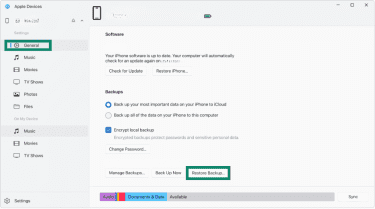
- Choose the correct backup based on the date and enter the backup password if it’s encrypted. Click Restore and wait for the process to finish. Keep the device connected after the restart until syncing completes.
Using iTunes on Windows or an older Mac
If you don’t have Apple Devices on Windows, you can use iTunes instead. iTunes also works on older Macs running macOS 10.14 Mojave or older.
- Open iTunes and connect your iPhone to the computer via a USB cable. Unlock your device and approve any Trust This Computer prompt.
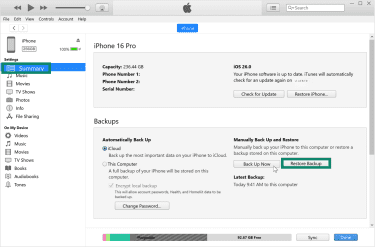
- Click Summary, then click Restore Backup. If the backup is encrypted, enter the password when prompted.
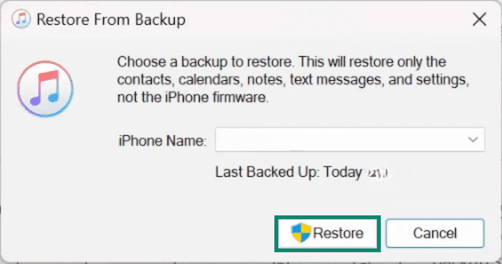
- A pop-up will appear showing all the backups on your computer. Choose the right backup from the drop-down menu and click Restore.
When recovery isn’t possible
If the 30-day Recently Deleted window has passed and you don’t have a backup from before the message was deleted, there are no Apple-supported options to recover the message on your iPhone.
Some services claim to be able to recover deleted data from iPhones, but they aren’t supported by Apple and don’t offer consistent results. They may also require broad access to your device or data, which can introduce security and privacy risks.
How to find hidden or missing messages on iPhone
Not all missing messages are deleted. iPhones have several features that can move messages out of the main conversation list without deleting them.
How to check filtered messages
If you have Screen Unknown Senders turned on, messages from people not in your contacts are moved out of your main conversation list automatically. To find these messages, tap the three horizontal lines and select Unknown Senders. Here, you’ll see messages from numbers not saved in your contacts.
Note: You won’t see the Unknown Senders option unless you have enabled Screen Unknown Senders in Settings > Apps > Messages.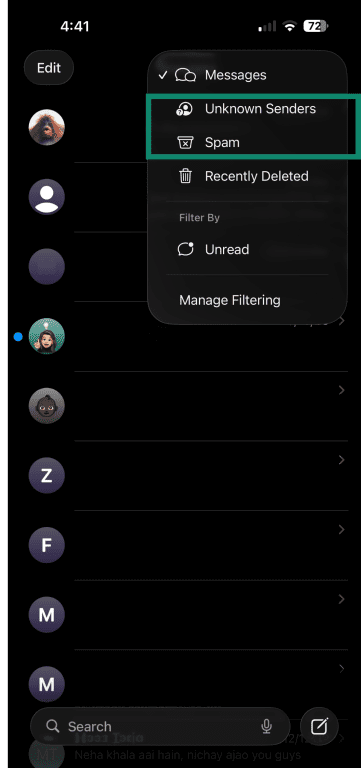
Messages can also end up in a Spam folder. When spam is detected, it’s moved to the spam folder and does not appear in your conversation list. To check, tap Spam in the conversation list. To recover a message, tap it, then tap Not Spam.
How to find messages across multiple threads
A message from someone you know can appear to be missing if it arrived under a different number or email address than usual. Conversations in Messages can show up as separate threads when a contact messages you from a different identifier or when your own iMessage settings change.
If conversations were started from an email address, those existing threads remain tied to that address even after you switch to sending from a phone number.
To check, open Messages and use the search bar to look up the contact's name. This surfaces all threads associated with that person across different numbers and email addresses, so you can see whether the message landed in an unexpected thread. You should also confirm that the contact’s details are correct and not duplicated, since mismatched entries can split conversations across multiple threads.
How to keep important messages from being deleted again
Message loss can easily happen during everyday actions like clearing conversations, managing storage, or resetting your device. Here are some tips to prevent accidentally losing messages:
Set Keep Messages to Forever
Go to Settings > Apps > Messages, scroll down, and tap Keep Messages under Message History.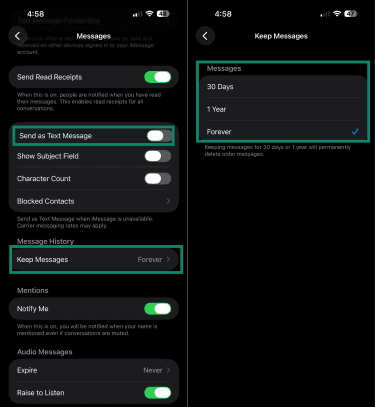
If you choose an option other than Forever, your conversations, including all attachments, are automatically removed after the specified time period elapses. If this is set to 30 Days or 1 Year, messages may disappear without you ever manually deleting them.
Check your Send & Receive settings
Go to Settings > Apps > Messages > Send & Receive and confirm which phone number or email address your iPhone uses to send and receive messages. If your device isn't set to receive messages on a specific address, messages sent to that address may not appear on your iPhone.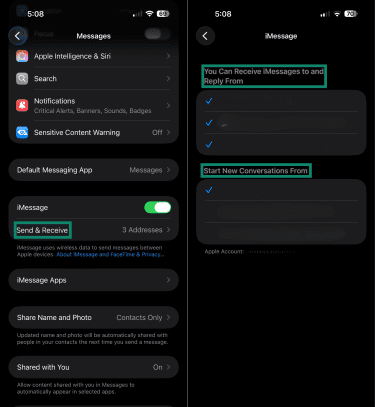
Be careful when deleting conversations
Deleting a thread removes all messages inside it at once. Before deleting a conversation, review it to avoid losing important information in bulk. Similarly, removing messages from Recently Deleted deletes them immediately; once cleared from there, they can’t be recovered through normal iPhone methods.
Save important messages outside the Messages app
For messages you cannot afford to lose, copy key details into Notes, take screenshots, or save attachments in another location. This helps preserve your messages in case something happens to your iPhone or its backups. For especially sensitive information, back up your files and encrypt them.
FAQ: Common questions about finding deleted messages on an iPhone
How long do deleted messages stay on an iPhone?
Can I recover permanently deleted messages after 30 days?
Can I restore deleted messages from one contact only?
Will restoring a backup erase my current data?
Why did my messages disappear on iPhone?
Are deleted iPhone messages stored in iCloud?
Take the first step to protect yourself online. Try ExpressVPN risk-free.
Get ExpressVPN