How to delete a Gmail account: Step-by-step guide (desktop, iPhone, Android)



A Gmail address can stick around for years, long after it stops being useful. Keeping old accounts active can expand a digital footprint and leave more personal data tied to logins that aren’t regularly monitored, potentially increasing exposure if an account is accessed by someone else or if data is involved in a breach. Deleting accounts that are no longer needed can be a sensible cleanup step, especially when switching to a new email provider or address.
This guide explains what happens when you remove Gmail, what to do before you start (so important messages and sign-ins aren’t lost), and how to complete the process on desktop, iPhone, and Android.
What happens when you delete your Gmail account
Deleting your Gmail account means you lose access to your inbox, can no longer send or receive emails at that address, and Gmail emails and settings are deleted after about 30 days. If you change your mind, you may be able to recover your Gmail address and emails shortly after deletion. Google also says the Gmail address can’t be used by anyone in the future.
However, your Google Account remains active. You can still access Google services, such as Drive, Photos, YouTube, Calendar, and Google Play, but deleting Gmail without deleting the whole Google Account requires an alternate (non-Gmail) email address for sign-in.
This is different from deleting a Google Account entirely, which closes the account and removes data across all connected services.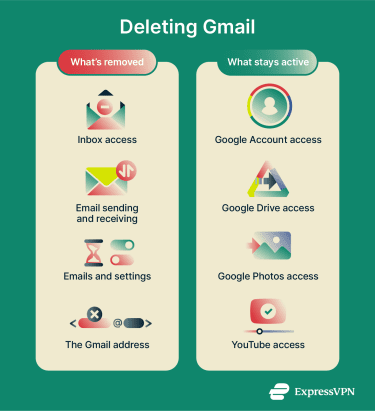
Do you actually need to delete Gmail?
In some cases, deleting Gmail isn’t necessary, especially if the main issue is clutter, spam, or promotional emails. If inbox overload is the problem, Gmail’s built-in tools can help clean things up.
Manage your inbox
Filters can automatically label, archive, or delete incoming messages, reducing clutter without manual cleanup.
For newsletters and promotional emails, Gmail may show an Unsubscribe option next to the sender name (or a Go to website option), but it isn’t available for every message. For suspicious emails, it's safer to mark them as spam or block the sender rather than click unsubscribe links.
Labels offer another way to organize your inbox. Unlike folders, one message can have multiple labels.
If the concern is privacy, deleting Gmail may not address the broader issue on its own. Reviewing Google Account privacy settings can help reduce the amount of data shared across Google services.
Forward emails to a new address
If you want to switch to a different email provider without deleting Gmail entirely, forwarding can make the transition smoother. Gmail can automatically forward incoming messages to another address (set up on a computer), so checking the old inbox isn’t required.
To bring older messages into a new inbox, the options depend on the provider; some email services and apps can import or sync Gmail mail, while others can’t. This approach also gives time to update login emails on important accounts and notify contacts.
Before you delete: back up and prepare
For security, update any sign-in emails and account-recovery options that still use the Gmail address, for example, bank accounts, social media, password managers, and two-factor authentication backups, before removing Gmail. This helps prevent recovery or verification messages from being sent to the old address.
Deleting Gmail removes your inbox access. Before proceeding, it’s worth backing up anything you want to keep and making sure your Google Account sign-in details are up to date.
Download your emails with Google Takeout
Google Takeout lets you download your Gmail messages as an archive file. To export your Gmail data:
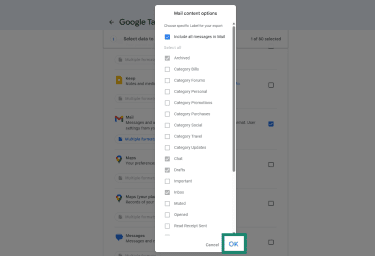
- Go to Google Takeout and sign in. Make sure Mail is selected. If you only want to export emails with specific labels, click All Mail data included (or All data included) and deselect what you don't need.
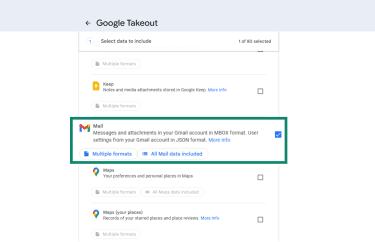
- Click on OK to confirm.
- Scroll to the bottom and click on Next Step.
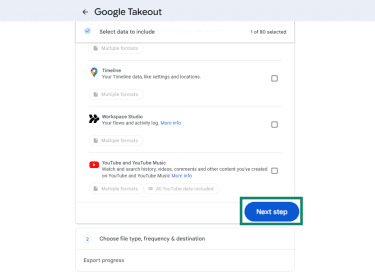
- Under Delivery method, select Send download link via email (or another option from the dropdown menu). Choose the export frequency, file type, and maximum archive size, then select Create export.
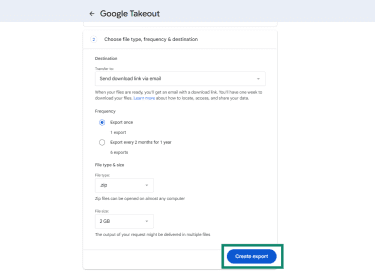
- When the email arrives, select Download archive and follow the on-screen instructions.
Remember, downloading your data doesn’t remove it from the account; it only creates a copy. Google prepares your archive in the background, which can take anywhere from a few minutes to a few days, depending on mailbox size, and large exports may be split into multiple files.
One thing worth knowing: the archive may not include changes made between when the download is requested and when the archive is created. If something is time-sensitive, consider creating another export after key changes are done.
Save important contacts
If Gmail has been used for a while, contacts may be tied to the same Google Account. Google Contacts lets you export contacts as a file to import into another service or keep as a backup.
To export your contacts:
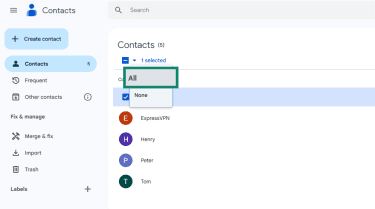
- Go to Google Contacts and sign in. Select the contacts you want to export, or click All (or All Contacts) to select everything.
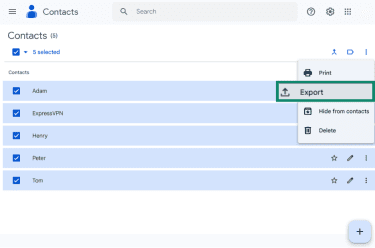
- Click the three-dot menu, then Export.
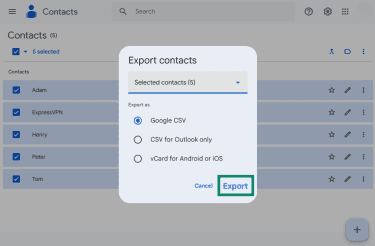
- Choose a format and select Export to download the file. Available formats include:
- Google CSV (best for importing back into Google).
- Outlook CSV (for Microsoft services).
- vCard (for Android and Apple contacts, and many other address books).
Check which apps and sites use your Gmail to sign in
Many apps and websites let people sign in using Sign in with Google. If that option was used, the account may be tied to the Gmail address that’s being removed. It’s worth reviewing which apps and sites are connected and updating your login details where necessary.
To check connected apps and services:
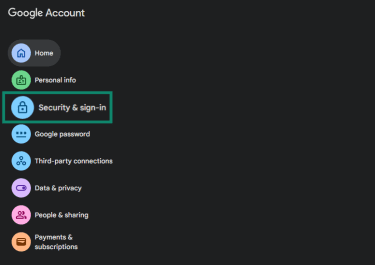
- Go to your Google Account and sign in. Select Security & sign-in from the left-hand menu.
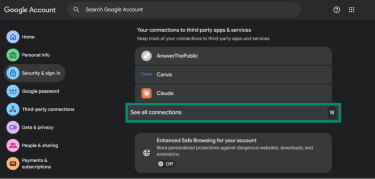
- Scroll to Your connections to third-party apps & services, then click See all connections.
- Select an app, then click Delete all connections to remove its access.
Prioritize anything that could lock you out later: services that send login codes or reset passwords by email, such as banking, work tools, shopping accounts, and subscription platforms.
If those accounts still point to a Gmail address you're about to delete, reset links can end up going to an inbox that’s no longer accessible.
Choose a new email for your Google Account
If you plan to keep using other Google services after removing Gmail, you need to add an alternate non-Gmail email address.
This option appears during Gmail removal:
- Start the Delete your Gmail service process.
- When prompted, enter an existing alternative email address (you can't use a Gmail address).
- Click on Next, then open the verification email sent to that address and confirm it.
Gmail won't be removed until the address is verified. After that, the new address is used to sign in to the Google Account.
How to delete your Gmail account permanently
If the steps above are complete and it’s time to proceed, follow these steps to delete Gmail.
Delete Gmail from a computer
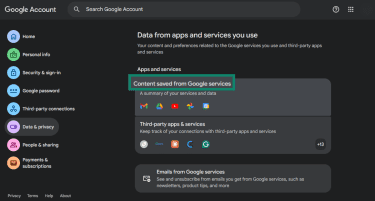
- Go to your Google Account and sign in. Select Data & privacy from the left-hand menu. Scroll to Data from apps and services you use, and click on Content saved from Google services.
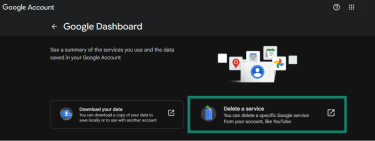
- Click on Delete a service. You may have to sign in again.
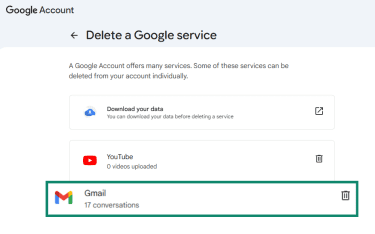
- Find Gmail in the list, then click the trash icon next to it.
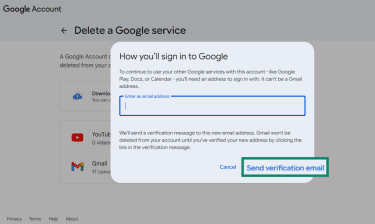
- When prompted, enter an existing email address you want to use to sign in. This can’t be a Gmail address, and it can’t already be linked to another Google Account. Select Send verification email.
- Open the verification email and click on the confirmation link. Your Gmail will not be removed until you complete the verification step.
Delete Gmail on Android
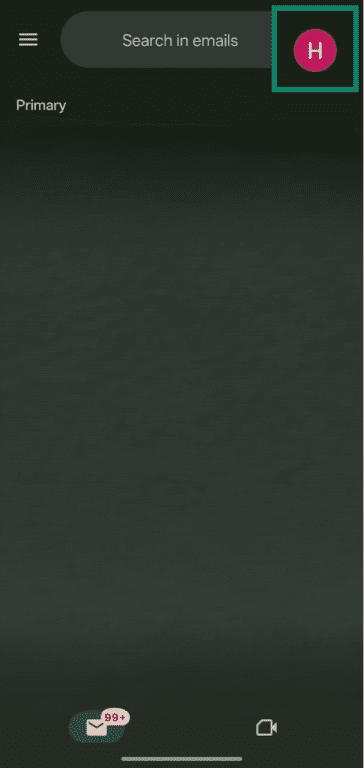
- Open the Gmail app and tap your profile picture in the top-right corner. Alternatively, go to myaccount.google.com in your browser.
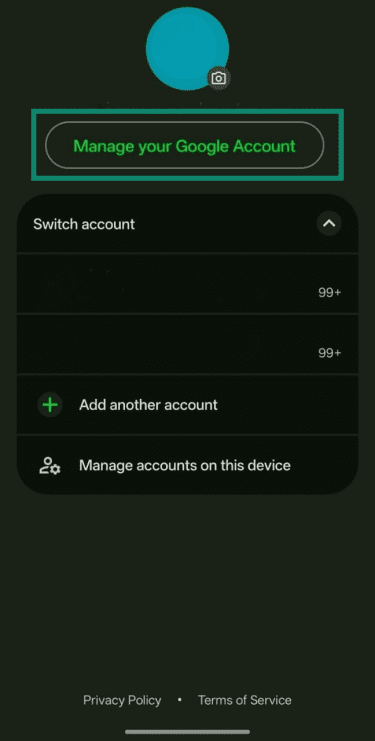
- Tap Manage your Google Account.
- Select Data and privacy.
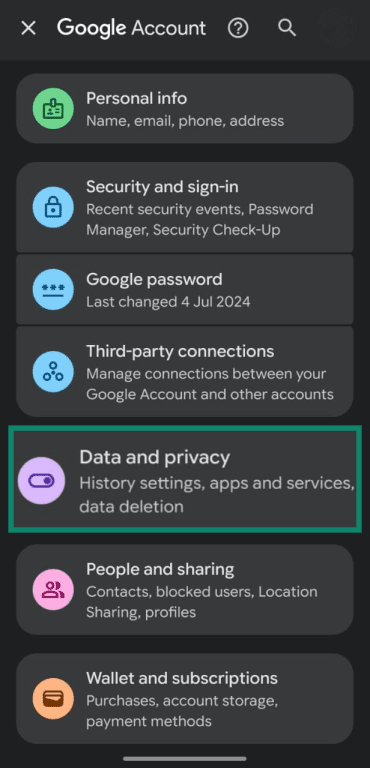
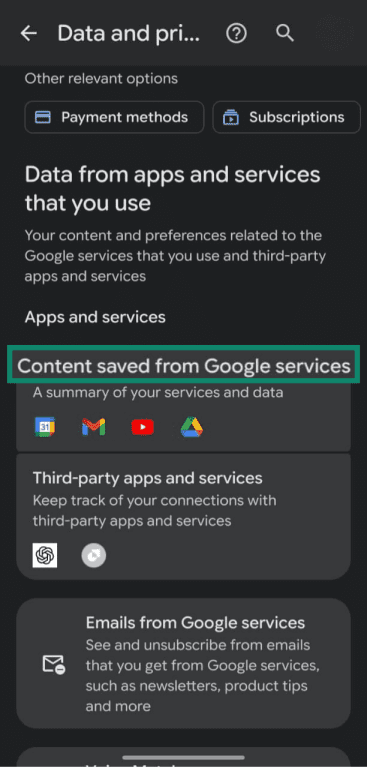
- Scroll to Data from apps and services that you use and tap Content saved from Google services.
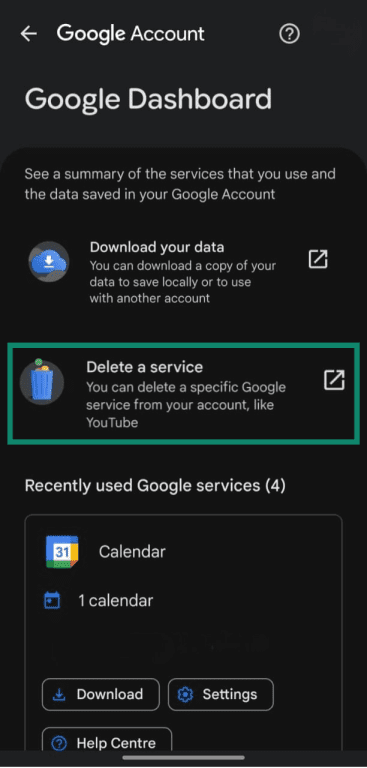
- Tap Delete a service. You may be prompted to sign in again.
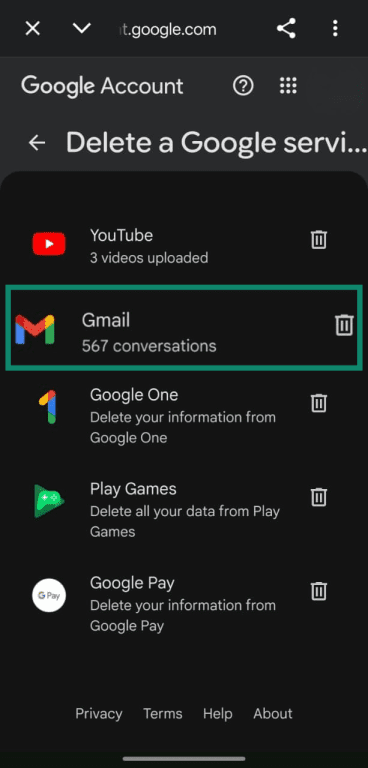
- Tap the trash icon next to Gmail.
- Enter a non-Gmail email address and tap Send verification email.
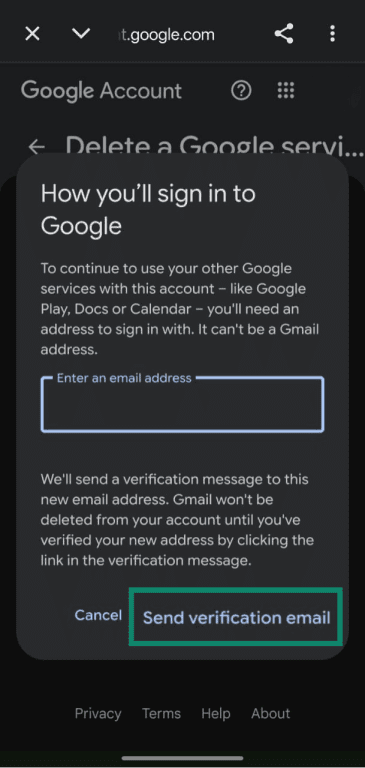
- Click on the confirmation link to complete the removal.
Delete Gmail on iPhone
- Open the Gmail app and tap your profile picture in the top-right corner.
- Select your Google Account to open account settings.
- Tap Data and privacy at the top of the screen.
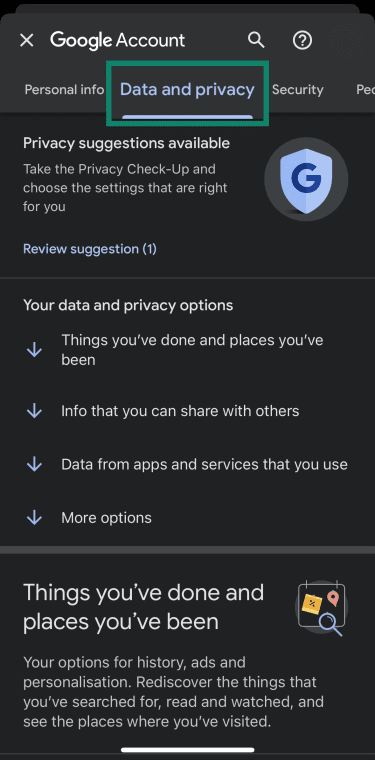
- Scroll to Data from apps and services that you use. Under Apps and services, tap on Content saved from Google services.
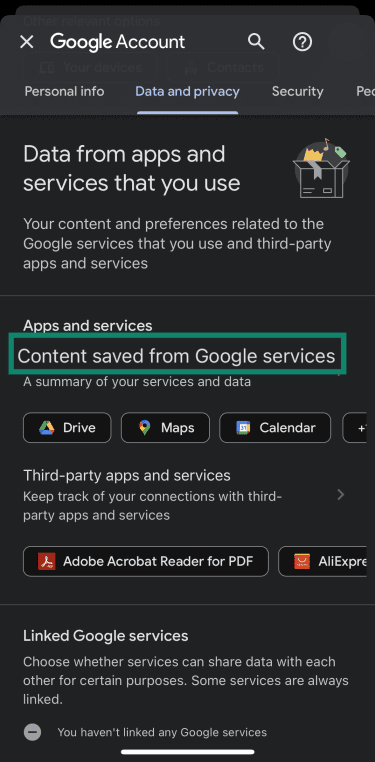
- Tap Delete a service. You might have to sign in again.
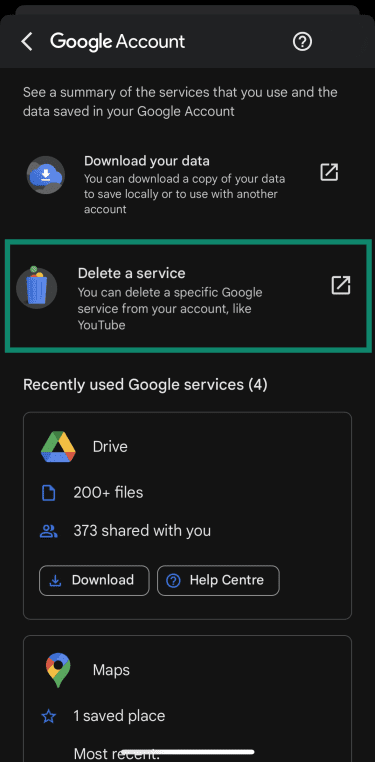
- Next to Gmail, tap the trash icon.
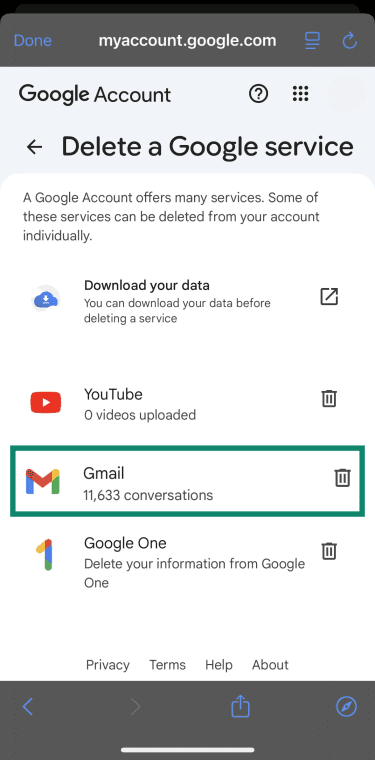
- Enter your alternative email address and tap Send verification email.
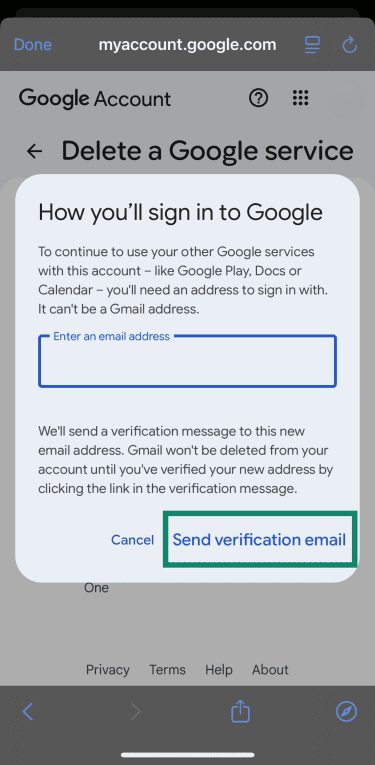
- Check your inbox for a verification email and follow the confirmation link.
How to recover a deleted Gmail account
Recovering a deleted Gmail account may be possible, but it isn’t guaranteed. Whether you can restore access depends on how much time has passed since deletion (the recovery window is usually within 30 days) and whether you can successfully verify your identity during the recovery process. If your account was deleted a while ago, it may not be recoverable.
The recovery steps below are similar across desktop, iPhone, and Android (use a web browser):
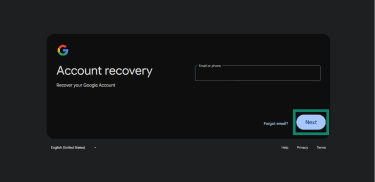
- Go to the Google Account recovery page and enter the recently deleted email address, then select Next.
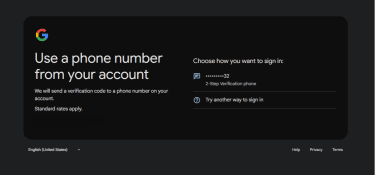
- Follow the prompts to confirm it’s your account (for example, a password or verification code, depending on what’s available).
- If recovery is available, follow the instructions to restore access.
If recovery isn’t possible, create a new Google Account and update the email address on any services that used the deleted Gmail address. On Android: To remove the Google account from the device (system-level): To remove the account from the Gmail app on Android:
FAQ: Common questions about deleting a Gmail account
Can I delete Gmail but keep my Google Account?
How do I remove a Gmail account from my phone?
What happens to my emails and data when I delete Gmail?
Can I recover my Gmail account after deleting it?
Take the first step to protect yourself online. Try ExpressVPN risk-free.
Get ExpressVPN















 Support Center
  FAQ
FAQ  VPN Setup Tutorials