How to change your iPhone passcode and keep your data safe


A passcode is your iPhone’s main security protection. Unlike the Apple Account password, which secures your Apple account, your passcode is used to unlock the device and authorize certain security updates, such as some software updates. It also helps protect the data stored on the iPhone.
In this guide, we’ll show you how to change your passcode and share tips on making it harder to guess or crack. You’ll also learn what to do if you forgot your current passcode.
Why change your iPhone passcode?
A passcode prevents unauthorized access to your iPhone, protecting personal data and access to sensitive apps and accounts. In most cases, the current passcode is required to set a new one. If it’s forgotten, the device may need to be erased and set up again, though some users can temporarily reset a recently changed passcode using Apple’s recovery feature.
Here are some common reasons to change an iPhone passcode:
- Make it more secure: If your current passcode is easy to guess, consider changing it to a stronger one. Combining it with biometrics like Touch ID or Face ID can make better protection more practical in everyday use.
- After a security incident: If there’s reason to think someone may know the passcode, for example, after a phishing attempt, account exposure, or device access by someone else, changing it is a sensible precaution.
- If someone may have seen it entered: People can observe a passcode in public, sometimes called shoulder surfing. Changing it can help block access if the code was exposed.
- After repeated incorrect attempts or a lockout: Entering the wrong passcode too many times can result in an unavailable screen or a security lockout screen. If access can’t be regained, the iPhone may need to be erased before setting a new passcode.
What happens when you change your passcode
Before you change your passcode, it’s worth knowing what to expect.
- Apps and services may stay signed in: Apple’s instructions for changing an iPhone passcode describe the device security change, but don't say that apps or Apple services will stay signed in or be signed out as part of the process. Some apps may still ask for authentication again, depending on their own security settings.
- Face ID/Touch ID remains set up: There’s no need to reset your biometrics. They can still be used to unlock your iPhone and sign in to many apps, though after a restart, you’ll need to enter your passcode before biometrics work again.
- Apple Watch stays paired: Changing your iPhone passcode doesn't affect your Apple Watch pairing. Apple Watch uses its own passcode, which is managed separately. If Unlock with Apple Watch is enabled, it should continue to work as long as the usual requirements are still met.
- Your old passcode can still help briefly: In iOS 17 and later, if you forget your new passcode, you can use your previous passcode once within 72 hours to access your iPhone and set a new one.
iPhone passcode types
iPhone supports different passcode formats that vary in complexity and security. Generally, the longer and more complex a passcode is, the harder it is to guess or crack using brute-force attacks.
- 4-digit numeric code: This is the least secure option with approximately 10,000 possible combinations (10⁴).
- 6-digit numeric code: A more secure option with approximately 1,000,000 possible combinations (10⁶).
- Custom numeric code: A numeric passcode of any length, offering more combinations the longer it gets.
- Custom alphanumeric code: Accepts both numbers and letters. Because it can use a larger character set than a numeric code, it can be much harder to guess.
Apple identifies custom alphanumeric code and custom numeric code as the most secure options.
Note: The Screen Time passcode is separate from your regular iPhone passcode, and a device can have both at the same time. The Screen Time passcode is used to prevent changes to Screen Time settings and may also be required to approve more time when limits expire.
Read more: Generate a secure and random password.
How to change your iPhone passcode
To change your iPhone passcode, follow these steps:
- Open the Settings app (gear icon) on your Home Screen or in the App Library. If needed, swipe down on the Home Screen and search for Settings.

- Scroll down and tap Face ID & Passcode. On earlier iPhone models, tap Touch ID & Passcode instead.
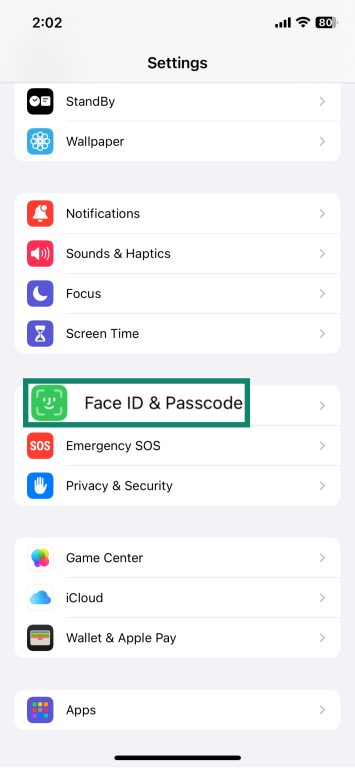
- Enter your current passcode.

- Scroll down and tap Change Passcode.
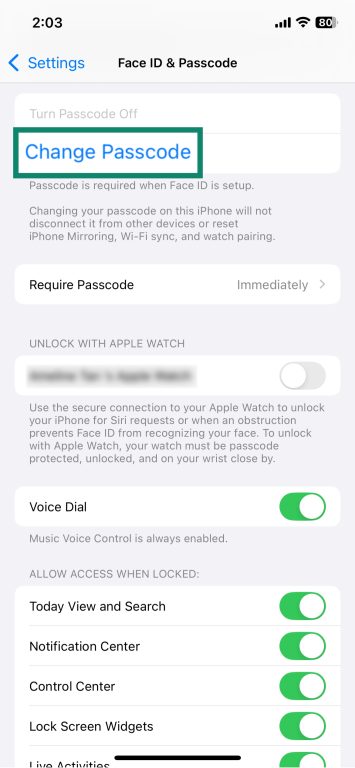
- Enter your current passcode again.

- Enter your new passcode or tap Passcode Options to choose the passcode type.
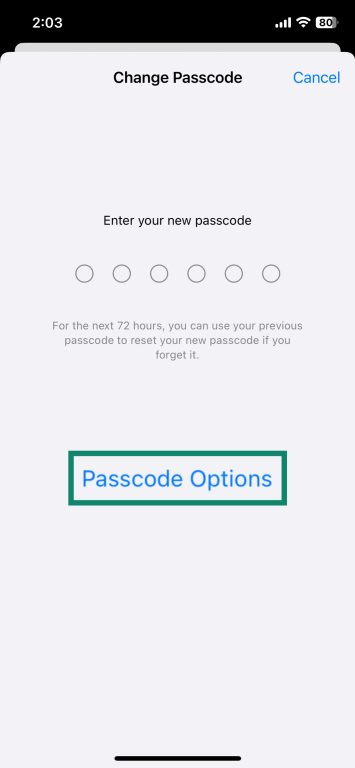
- Set and verify your new passcode.

What to do if you forgot your iPhone passcode?
In most cases, you can't change or remove an iPhone passcode without knowing the current one. However, in iOS 17 and later, if you recently changed your passcode and forgot it, Apple lets you use the previous passcode once within 72 hours to regain access and set a new one.
If you can still use your iPhone, that access may continue until a passcode is required again. If you can’t enter the correct passcode and the 72-hour recovery option doesn’t apply, you’ll need to erase and reset the device. This removes the data currently stored on the iPhone. Afterward, you can set it up again, create a new passcode, and restore your data from a backup if you have one.
There are two main ways to erase and reset your iPhone after a forgotten passcode: directly on the device or using a computer.
Reset iPhone using an iPhone
On iOS 15.2 or later, you can reset without a computer if Find My was previously enabled, and the device has an active Wi-Fi or cellular connection. The onscreen options vary by iOS version.
- Enter the wrong passcode until the iPhone Unavailable or Security Lockout screen appears.
- On iOS 17 and later, tap Forgot Password?, then Start iPhone Reset, and follow the prompts. On iOS 15.2 or iOS 16, tap Erase iPhone, tap Erase iPhone or Erase [Device].
- Enter your Apple Account password when prompted to sign out of your Apple Account on the device.
- When the iPhone restarts, follow the onscreen instructions to set it up again, restore from a backup if available, and create a new passcode.
Reset iPhone using a PC
Here's how to reset an iPhone using recovery mode on a Mac or Windows PC:
- Turn off the iPhone: The exact button sequence depends on the iPhone model. For example, on an iPhone with Face ID, press and hold the side button and volume down until the slide to power off appears, then drag the slider to turn off the device.

- Enter recovery mode: Connect the iPhone to your computer. On Mac, open Finder. On a Windows PC, open the Apple Devices app. For example, on an iPhone with Face ID, connect the cable and hold the side button until the recovery mode screen appears.
- Restore iPhone: On a Mac, select your iPhone in Finder and click Restore when you see the option to Restore or Update. On Windows, select your iPhone in the Apple Devices app, click General, then click Restore and follow the onscreen instructions.
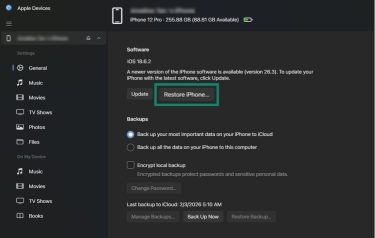
- Restore backup (optional): After the erase is complete, set up the iPhone again. During setup, you can restore your data from a backup if one is available. You can also restore from a computer backup using Finder or Apple Devices.
Once done, your iPhone will guide you through the initial setup process.
Troubleshooting passcode change issues
If you know your passcode but are unable to change it, the reason may be Screen Time or device management restrictions.
Face ID and Passcode option missing or grayed out
If settings related to passcode changes aren’t available or can't be selected, Screen Time restrictions may be limiting access to certain Settings options. Go to Settings > Screen Time > Content & Privacy Restrictions and check whether any relevant options are set to Don’t Allow. If so, change them to Allow and enter the Screen Time passcode if prompted.
Work or school device restrictions
Organization-issued iPhones may restrict which security settings users can modify. Apple’s device-management documentation includes a Modify passcode or password restriction that prevents users from changing the existing passcode. Contact the organization’s device-management administrator if needed.
Best practices for iPhone passcode security
To strengthen your iPhone passcode and protect your device from other risks, follow these mobile security guidelines:
- Use at least six digits: Apple’s default passcode is six digits, and Apple says the most secure options are a custom alphanumeric code and a custom numeric code. In general, longer and more complex passcodes are harder to guess.
- Avoid birthdays and common patterns: A passcode is easier to guess if it uses predictable information, such as a birthday or a simple number sequence (for example, 123456 or 000000). Longer, random strings are stronger.
- Don't reuse passcodes across devices: Reusing the same passcode on multiple devices can increase risk if one of them is compromised.
- Update iOS regularly: Apple says keeping software up to date is one of the most important things you can do to maintain your device’s security. iOS updates also include security fixes.
- Limit app permissions: Review app access to sensitive features such as the camera, microphone, and location, and turn off permissions that apps don’t need. Over-permissioned or malicious apps may be able to monitor activity or collect more information than expected. Apple also provides the App Privacy Report to help show how often apps access this data.
- Manage lock screen access: Restrict which features are accessible from the lock screen. You can also shorten the Auto-Lock time in Settings > Display & Brightness > Auto-Lock to reduce exposure if the phone is left unattended.
FAQ: Common questions about changing iPhone passcodes
Can I change the passcode without the old passcode?
If your iPhone is lost or stolen, the passcode helps protect access to the data stored on the device. Activation Lock is a separate security feature tied to Find My that helps prevent someone else from reactivating the device even after it has been erased.
How often should I change my passcode?
Does changing the passcode affect Face ID?
How to change the Screen Time passcode?
To change it on a family member's or child’s device, go to Settings > Screen Time. Select the person’s name under Family, then under Restrictions, tap Manage Screen Time. Tap Change Screen Time Passcode, tap Change Screen Time Passcode again, authenticate if prompted, and then enter a new Screen Time passcode.
If you forgot the current Screen Time passcode, Apple provides a separate recovery flow for resetting it.
How to remove the passcode on iPhone?
Removing your passcode reduces protection against unauthorized access to your device and the information stored on it. Apple recommends using a unique passcode to help prevent others from accessing your device and associated information.
Take the first step to protect yourself online. Try ExpressVPN risk-free.
Get ExpressVPN














 Support Center
  FAQ
FAQ  VPN Setup Tutorials