Most secure Linux distro: Best picks by threat model


Choosing the most secure Linux distro is about matching the system to its intended use, the sensitivity of the data it handles, and the level of setup and ongoing maintenance that are realistic.
In many common scenarios, a mainstream distro that is easy to update, well-documented, and broadly compatible (for example, Ubuntu or Linux Mint) can be a strong security choice because consistent patching and stable day-to-day use often reduce risk more than a specialized distro that’s harder to maintain.
This guide compares security-focused Linux distros by use case and threat model. It covers which security features tend to matter most in practice, what trade-offs to expect, and how different distros fit everyday desktops, privacy-oriented setups, and more specialized workflows.
How to choose the most secure Linux distro for you
The most secure Linux distro depends on context. In general, though, Linux security tends to focus on three outcomes: protecting system files from tampering, limiting the damage Linux malware or compromised software can cause, and preventing unauthorized access to files, services, or networks.
Most Linux distros support these goals and create a secure baseline. Linux imposes strict user permissions by default, which limit what standard accounts and processes can change on the system.
Software installation is also typically more tightly controlled than downloading standalone installers: package managers usually pull from configured repositories and rely on cryptographic integrity checks (for example, signed repository metadata and verification of package contents) to help detect tampering. That baseline matters, but distro choice is only part of security; patching habits and basic hardening often have as much impact as the distro itself.
Different distros build on that baseline in different ways. Some prioritize anonymity more. Others emphasize task isolation (for example, app sandboxing). Others lean harder on mandatory access control frameworks such as AppArmor or SELinux to confine what processes can access, even after standard Unix permissions are checked.
Start by identifying the security priorities that matter most to you, then pick a distro that matches the level of setup and upkeep you feel comfortable with.
Learn more: Read our detailed guide on Linux security.
Quick threat model checklist
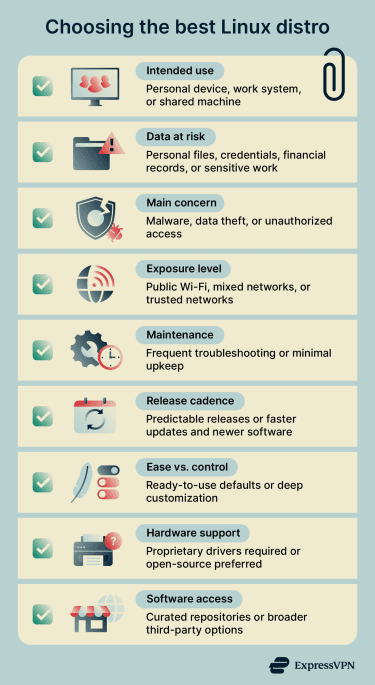
A threat model outlines what needs protection, what risks matter most, and what limits apply. This keeps Linux security choices aligned with actual priorities. Key factors include:
- Intended use: How a system functions day-to-day shapes security priorities. A personal laptop for browsing, a computer used for work or coding, and a system running shared services each have different isolation, compatibility, or administrative control needs.
- Data at risk: The information the system stores or processes, including personal files, financial records, credentials, research, and other critical documents. Depending on how and where this data is stored, this may influence backup practices, encryption, and file privileges.
- Main security concern: Malware, data theft, and unauthorized access often overlap, but depending on the primary threat, the emphasis shifts toward different controls. Some situations prioritize isolation and least privilege, while others depend more on access controls and disciplined patching.
- Exposure level: Where and how a system connects to other networks can also affect risk. Devices on public Wi-Fi or connected directly to the internet face more opportunities for attack than those on trusted home or internal networks.
- Maintenance: Security choices need to remain practical over time. More complex configurations offer greater control, but also require regular updates and troubleshooting. When ongoing upkeep isn’t realistic, simpler setups with reliable updates help reduce misconfiguration and missed patches.
What you’ll trade off
No Linux distribution does everything equally well. Choosing one means prioritizing certain goals over others, so a few trade-offs apply.
Customization, user-friendliness, and hardware support
Full-featured distros include graphical tools, background services, and common apps by default. That speeds up installation, making them more beginner-friendly and better suited for daily use. Some also offer optional third-party drivers (for example, proprietary Wi-Fi and GPU drivers) during installation or via built-in driver tools, which can improve hardware support on new laptops or gaming systems.
Minimalist distros (like Arch), on the other hand, start from a smaller base and expect the system to be assembled over time. This reduces preinstalled “extras” and leaves more room for customization, but it also shifts more setup and ongoing maintenance to the user.
App compatibility
Package ecosystems can impact app compatibility. Curated and pre-compiled repositories emphasize consistency, and packages are meant to work together. This reduces conflicts, but it can limit what software is available.
Source-based distros typically compile software from source code locally rather than installing precompiled binaries. This takes more time but allows deeper customization, and builds can vary between systems depending on selected options.
Also, repository choices change the trust model. Signature checks help detect tampering, but adding third-party repositories (or broadly trusting a new signing key) can expand what sources are allowed to supply system packages.
Stability vs. frequent updates
Fixed or long-term releases tend to be more predictable. They may stay on older major versions while still shipping security fixes through patching and backports, rather than constant version jumps. Rolling releases deliver newer kernels and applications faster, which benefits newer hardware and cutting-edge tools. However, these updates can introduce bugs and require manual intervention.
What makes a Linux distro secure: Ranking criteria
Linux distro security comes from a combination of features designed to protect system files from unauthorized changes, keep sensitive data private, and keep the system functioning as expected
Isolation and compartmentalization
Isolation limits how far an attacker can move after exploiting a vulnerability. It’s a security boundary that limits what one component can access, even if it’s compromised.
Compartmentalization is the practice of splitting activities into separate environments (for example, “work” vs. “personal”). It reduces risk most when it’s enforced by isolation, so a compromised browser can’t freely access personal documents or change system settings outside its compartment.
Most Linux systems support isolation through:
- User accounts: Each user account has its own home directory, and access between users is restricted by default permissions.
- File permissions: Permissions determine who can read, write, or execute files and enter directories, which directly limits what apps and users can access.
- Process boundaries: Programs run as separate processes with separate memory spaces, which helps prevent direct access to another process’s data.
- Containers or virtual machines (VMs): Containers and VMs run applications (or entire systems) in isolated environments, limiting what they can see or interact with on the host.
- Sandboxed app packaging (Flatpak/Snap): These systems can restrict what apps can access using sandboxing and controlled access to system resources (for example, through portals or defined interfaces).
Note: These controls aren’t unique to Linux and exist across other popular OSes, but distros differ in how strictly they configure them, what protections they enable by default, and how deeply they integrate tools such as sandboxed app delivery.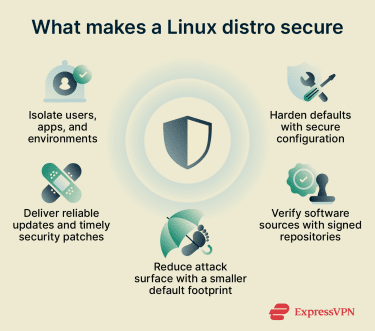
Default hardening
Default hardening refers to how secure a distro is immediately after installation. Distros can provide stronger defaults through secure configuration choices, Mandatory Access Control (MAC), and sandboxing.
- Secure defaults: Examples can include disabling unnecessary services, using a restrictive firewall, and requiring administrative actions through sudo rather than routinely running as root.
- MAC frameworks: Systems like SELinux and AppArmor add rules beyond standard Unix permissions (discretionary access control). MAC policies can confine what a specific program is allowed to do, even when it runs with elevated privileges.
- Sandboxing: It limits how individual apps interact with the system while they run. Instead of giving full access to files, sandboxed apps get narrow permissions, which can be enforced by desktop tooling and app packaging systems without requiring full VMs.
Update model and security patch cadence
Strong security posture depends on how consistently a distro fixes known issues. The update model determines how a distro handles newly discovered Common Vulnerabilities and Exposures (CVE).
Some distros ship patches quickly, shortening the window in which known flaws can be exploited. Others test changes longer before release; this can slow delivery, but may reduce the chance that an update breaks something that previously worked. A secure distro balances patch speed with stability testing.
For many users, support for automated security updates also matters, because it helps ensure fixes are applied promptly without manual effort.
Supply chain trust
Most mainstream distros use cryptographic signatures so systems can verify that repository metadata (and sometimes packages) came from an approved repository and wasn’t altered in transit. For example, Debian-style repositories sign the Release/InRelease metadata that describes the repository contents.
However, verification behavior can vary when third-party repositories or keys are added, potentially expanding which sources are allowed to supply system packages.
Reproducible builds are less common. Distros that support them aim to enable independent parties to rebuild software from source and verify that the result matches the published binary. Together, signatures and reproducible builds reduce the risk of tampered updates and make some build-time compromises easier to detect.
Attack surface
Attack surface refers to the extent to which software could contain vulnerabilities. Every installed package, running service, or open network port adds more code that needs to be secured and updated.
Some distros ship with many preinstalled tools, background services, and network-enabled features. Others start with a minimal base system and require users to add only what they need. A smaller default footprint can mean less software that could contain exploitable flaws, but it can also shift more configuration responsibility to the user.
Best secure Linux distros compared
Security on Linux depends on the threat model. For many people, a mainstream distro that’s easy to update and well supported on common hardware (for example, Ubuntu or Linux Mint) is the most practical, secure daily driver.
The distros below are purpose-built for security, privacy, or isolation, and come with clearer trade-offs.
Qubes OS: Best for extreme isolation
| Reasons to choose | Reasons to avoid | Best for |
|
|
|
Qubes OS is built around security through compartmentalization: instead of running everything inside one environment, it splits activities into isolated VMs called qubes. If a risky website, app, or file is compromised within a qube, it's designed to have access only to what is inside that qube, not to sessions or data in other qubes.
Because qubes can be based on different OSs, Qubes can mix ecosystems on one desktop. For example, one qube can run a Debian or Fedora template for everyday tasks, while another can run Windows as a hardware-assisted VM when needed.
Qubes also supports color-coded trust labels, which make it easier to see which windows belong to more sensitive or more exposed tasks. For privacy, it can be configured to route traffic through Tor using Whonix-based networking qubes.
The downside is overhead. Qubes has stricter hardware requirements than typical desktop distros, including CPU virtualization features, and it benefits from more RAM and fast storage. GPU-based workloads are also a weak fit by default: hardware acceleration commonly requires dedicating a GPU to a qube or more advanced configurations.
Tails: Best for anonymity on the go
| Reasons to choose | Reasons to avoid | Best for |
|
|
|
Tails is lightweight enough to run from a USB and works as a plug-and-play live system. It’s designed for privacy-conscious use, with an amnesic setup and built-in tools for anonymity and data protection.
Each session is temporary: by default, everything you do disappears automatically when you shut down Tails, unless specific data is saved to encrypted Persistent Storage (an optional, password-protected area on the Tails USB that keeps selected files and settings across reboots). Tails routes internet activity through the Tor network, which is part of why browsing can feel slower than on a standard connection.
Tails includes Tor Browser, plus tools such as OnionShare for sharing, Thunderbird for email, and Metadata Cleaner for removing file metadata.
The out-of-the-box design makes Tails relatively approachable for short, privacy-focused sessions. It also runs independently from other OS, which can reduce exposure to viruses and malware on the usual installed OS.
However, the same design limits daily convenience. Routing through Tor can slow downloads, and while encrypted Persistent Storage exists, Tails is still not built for extensive customization or broad “install anything” workflows compared with a traditional desktop distro.
Whonix: Best for Tor compartmentalization
| Reasons to choose | Reasons to avoid | Best for |
|
|
|
Whonix is built around a two-VM design that forces network traffic through Tor. The Workstation VM runs applications, while the Gateway VM handles the Tor connection and networking. This separation helps protect the real IP address from apps running in the Workstation and reduces the impact of application misbehavior on network identity.
Whonix is based on Kicksecure and inherits hardening efforts, such as tightened system defaults and a hardened kernel configuration (including VM-focused hardened kernel configs).
Live (amnesic) use is also possible, for example, by running Whonix as a host OS from a Live ISO/USB, though many deployments are persistent by design for ongoing use.
Like Tails, Whonix also includes (or supports) common privacy/security tools such as Tor Browser, OnionShare, and Thunderbird. It can also be configured for Onion Services and remote administration over Tor, for example, via Onion Services setups for Secure Shell (SSH).
The downsides are the usual trade-offs of Tor and VMs. Tor routing can slow browsing, and some sites block Tor traffic. Running two VMs also increases resource usage and requires a virtualization-capable setup compared with a lightweight live distro.
Alpine Linux: Best for minimal attack surface
| Reasons to choose | Reasons to avoid | Best for |
|
|
|
Alpine Linux is small, simple, and security-oriented. It’s based on musl libc (a lightweight C standard library) and BusyBox (a single compact suite of core Unix command-line tools), which helps keep the base system lightweight and resource-efficient.
Many distros rely on glibc, which is larger and includes extensive compatibility behavior. Alpine uses musl instead, which can reduce the footprint but may cause compatibility issues with software built specifically for glibc.
Alpine also relies heavily on BusyBox applets in place of many separate full-featured utilities. This reduces disk usage and dependencies, and keeps the base system tightly controlled. Alpine’s installer can also leave a very minimal system by default (base OS only), which is part of why it boots fast and stays lean.
With fewer packages and services installed out of the box, there is less default software that could expose network services or add vulnerable code paths. For hardening, Alpine states that userland binaries are compiled as PIE with stack smashing protection, which are common exploit-mitigation techniques. PIE works with address space layout randomization to make certain memory-corruption attacks harder.
However, Alpine is usually a better fit for containers, servers, and build-it-yourself environments than as a ready-made desktop OS. Its defaults are intentionally lightweight, and common tools may not be present until installed (for example, /bin/sh points to BusyBox ash by default rather than bash). Not using glibc can also create friction for some third-party software and binaries that assume glibc behavior.
Learn more: Find out how to set up a home server from scratch.
Parrot OS: Best for a pentesting lab (Security Edition in a VM)
| Reasons to choose | Reasons to avoid | Best for |
|
|
|
Parrot OS is Debian-based and built for security and privacy workflows, but it’s best used with a clear separation between roles. A common approach is to run the Security Edition as a dedicated lab environment (often a VM or live setup) and keep daily work in the Home Edition, so pentesting tools stay isolated from everyday accounts and files.
The Security Edition is packaged with a large preinstalled toolset (800+ security and development tools) for tasks such as testing, analysis, and reporting. The Home Edition targets privacy, programming, and day-to-day work without the full pentesting suite.
For privacy and isolation, Parrot includes tools such as AnonSurf (a wrapper that can force connections through Tor), and it supports hardening features such as AppArmor and firejail-based sandboxing. Parrot also states that it disables preinstalled network services by default to reduce exposure, with services started manually when needed.
Parrot uses its own repositories alongside Debian packages and describes its approach as a rolling-release update model (with frequent tool updates), which can be useful for staying current but can also require comfort with upgrades and troubleshooting.
How to secure your current Linux distro if you don’t switch
A special distro isn’t always necessary. For daily use, mainstream distributions like Ubuntu, Mint, and Debian can also support stronger security through careful configuration choices and reliable updates.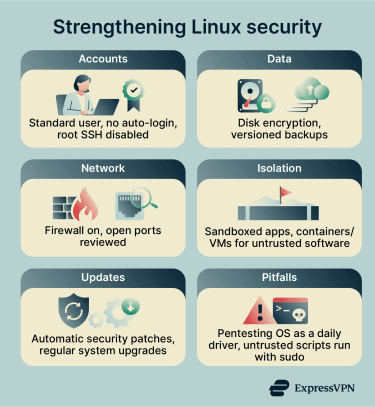
- Account lockdown and authentication: Linux already enforces privilege separation, and tighter account controls can further reduce risk. Daily tasks typically run under a standard account, while admin actions run through sudo policies like /etc/sudoers (or /etc/sudoers.d). On networked systems, direct root SSH login can be disabled (for example, via the PermitRootLogin setting in /etc/ssh/sshd_config), and automatic login can be turned off so sign-in requires a password or other authentication.
- Full-disk encryption and backups: Data encryption helps protect confidentiality if a device is lost or stolen, while backups support recovery after accidental loss or compromise. Full-disk encryption is commonly implemented with Linux Unified Key Setup (LUKS) via dm-crypt during installation or when setting up encrypted partitions. Backups using tools such as BorgBackup, Timeshift, or snapshot-style rsync setups can help protect against permanent data loss and bad changes.
- Firewall and safer networking defaults: Fewer listening ports and fewer exposed services reduce entry points. Host firewalls such as ufw or firewalld can be configured to deny incoming connections by default and allow only what is explicitly needed. Unused services can be disabled with systemctl, and listening ports can be reviewed with modern tooling such as ss (commonly used in place of netstat).
- App isolation, sandboxing, and least-privilege habits: Use sandboxed apps where possible, and run untrusted software in a container or VM rather than on the host system.
- An update strategy that actually works: Delaying updates leaves known vulnerabilities open longer. Consistent maintenance often improves security more reliably than complex setups that go unmanaged. On Debian-based systems, unattended-upgrades can automatically download and install security updates. Regular full updates through tools like apt, dnf, or pacman keep kernels and core packages current.
Also read: What is an open port? A guide to network vulnerabilities.
Common mistakes that weaken Linux security
Some Linux security gaps stem not from exploits but from routine trade-offs that bypass safeguards or mix roles meant to stay separate.
Using pentesting distros as daily drivers
Pentesting distros are designed for convenient security testing, not everyday browsing and personal work. They often assume frequent changes, rapid tool updates, and workflows that involve elevated privileges.
On a machine that also stores personal accounts and files, that combination can raise the impact of mistakes and unsafe code. Kali’s own documentation, for example, frames Kali as a distro for penetration testing/security work rather than a general-purpose desktop.
These systems also ship with large toolsets and specialized repositories, which increases the number of components to update and the amount of configuration to manage. Many tools work best with administrative privileges, so small errors can affect core parts of the system.
Even for legitimate testing, mixing it with daily activities reduces separation. Downloading proof-of-concept code, running unknown scripts, or enabling temporary services on the same machine used for personal files increases the chance of accidental exposure. For everyday use, a standard distro plus a VM for occasional testing keeps those roles more clearly separated.
Ignoring firmware and boot security basics
Security starts before the OS: firmware loads a bootloader, which loads the kernel. Secure Boot is a feature meant to ensure that only trusted, signed components are allowed to boot, depending on the platform and distro implementation. Ubuntu documents Secure Boot as verifying critical components (bootloader, kernel, and kernel modules) on supported releases.
Disabling Secure Boot removes that verification step. If boot components are modified and signature enforcement is not in place, those changes can persist across restarts and load before user permissions and firewall rules apply. This is one reason boot-chain protections are treated as a distinct layer from OS hardening.
For many home systems, the most common issue is practical rather than constant active attack: Secure Boot gets turned off to accommodate unsigned drivers, custom kernels, or certain dual-boot setups. Many mainstream distros support Secure Boot out of the box, but gaps appear when that chain is intentionally bypassed.
Installing random packages and scripts without verification
When installing from official repositories, package managers verify signed repository metadata (and integrity hashes) to detect tampering during updates and installs. For Debian/Ubuntu, apt verifies the signed InRelease/Release metadata as part of the update chain.
Problems tend to start when downloading standalone scripts, adding untrusted third-party repositories/keys, or executing remote code directly (for example, piping curl to a shell). If a script is run with sudo, it can modify system files, change dependencies, or install persistent access, whether due to malice or mistakes.
This doesn’t mean all third-party software is unsafe. The risk is skipping verification and source review, which removes an important safety layer.
FAQ: Common questions about Linux distros
What is the most secure Linux distro for daily use?
Is Qubes OS overkill for most people?
Which Linux distro is best for cybersecurity testing?
Do I need a VPN on Linux?
Which Linux distros route traffic through Tor by default?
Can Linux be 100% secure?
Take the first step to protect yourself online. Try ExpressVPN risk-free.
Get ExpressVPN













 Support Center
  FAQ
FAQ  VPN Setup Tutorials