Is YouTube safe? A parent’s guide to keeping kids protected online


YouTube is one of the most popular video-sharing platforms that kids use to watch stories and cartoons, explore new interests, and keep up with their favorite creators. However, they may also encounter content or interactions that aren't age-appropriate.
This guide walks you through how YouTube approaches safety, the risks kids might face, and how well the platform's built-in tools address those issues. We also outline some practical steps parents can take to create a more supervised experience across devices, accounts, and home networks.
Understanding YouTube’s appeal to kids
YouTube is generally popular among kids because of its ease of use, high-quality visuals, bright colours, and fast-paced nature. Many kids enjoy dancing along to catchy songs, watching funny videos, and seeing how other kids or creators play with toys or act out stories. The platform also offers a large selection of YouTube channels made for young audiences, appealing to a range of age groups. And unlike traditional TV with fixed schedules, YouTube gives kids more flexibility to choose what they want to watch.
Another part of YouTube’s appeal is the ability to create and share videos. Kids see other young creators gaining views and subscribers, which can make the platform feel exciting and interactive. While YouTube requires users to be at least 13 years old to have their own account, younger children may still participate by appearing on family-run channels or using YouTube Kids with parental setup.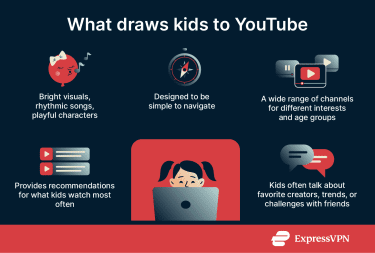
Social factors also play a role in how and why kids use YouTube. Many children mention trending videos and favourite creators when talking with friends in person or online, and this shared interest can make watching YouTube part of staying connected with peers. The platform's fast pacing, cliffhangers, autoplay, and personalized recommendations can also encourage longer viewing sessions, depending on the content and the child.
Research shows how central YouTube has become to kids’ screen time. According to a Pew Research Center study, 80% of U.S. parents with children aged 11 or younger say their child uses YouTube, with 53% reporting daily use. Other studies of children's media habits show that YouTube is now one of the most frequently used platforms among kids aged 0–8, who spend around an hour a day watching online videos.
How the YouTube experience differs by age
Children and adults engage with YouTube differently. As kids grow, their ability to interpret content, understand advertising, recognise risks, and navigate online interactions develops. These differences shape how they experience the platform, and the kinds of features or safeguards families may choose to use.
Young children (under 7)
Kids at this age are often drawn to simple, short-form stories, bright visuals, catchy songs, and familiar characters. For example, the Baby Shark music video has over 16 billion views on YouTube at the time of writing. The platform's algorithm will suggest more and more of these same content types based on a child's past viewing habits, which research suggests may influence a child's cognitive abilities, social behaviour, and emotional regulation.
A 2020 Common Sense Media study of young kids and YouTube found that 27% of the most-viewed videos by participants aged 0-8 were not age-appropriate and instead fell into the tween/teen categories, such as Fortnite gameplay videos. Research has shown that some children as young as 18 months can tap, press, and hold, or swipe on phones and tablets, which may increase the likelihood of accidental clicks of YouTube content.
Research further shows that young children frequently struggle to distinguish what is safe, misleading, or commercial. So, they might not recognize that they're watching content (including ads) that references age-inappropriate language and actions.
Preadolescents (8–12)
This group was found to use YouTube frequently for entertainment, gravitating toward content they find inspiring, fun, or relaxing. At this stage, many kids tend to learn by observing others, and they may be influenced by attitudes or behaviors modeled by creators they enjoy or relate to. For example, if a YouTuber addresses a specific topic, children might see it as important and believe what is said is true.
Children between 8 and 12 are generally better able to distinguish traditional advertising from regular content. However, studies indicate they may still have difficulty recognising less overt forms of advertising, such as product placements, influencer promotions, or branded integrations, which can make it harder for them to identify the persuasive intent behind these.
Tweens and teens (12–17)
Tweens and teens use YouTube not just for entertainment and music, but also for schoolwork, news-style explainers, and advice. They interact more actively, commenting, liking, subscribing, and engaging with creators, which might increase privacy risks and exposure to targeted content and mature or emotionally intense material, depending on what they watch and how they use the platform.
Adults (18+)
According to Global Media Insight, 25–34 year olds make up the largest age group of YouTube content (21.50%), followed by 35–44 year olds (17.90%) and 18-24 year olds (15.70%). In 2023, some of the most globally searched terms on YouTube included Piediepie, ASMR, and Bangtan Boys (BTS), a South Korean music group.
Although adults generally have a more developed understanding of advertising, satire, and misleading or low-quality content than younger users do, studies suggest that many also rely on YouTube for information related to addressing particular challenges, believing the platform is less biased than other media sources, and often watch videos to learn about specific topics, including health-related questions, before deciding what steps, if any, to take next.
What makes YouTube unsafe?
Even when families are actively involved in how children use YouTube, the platform can still expose young viewers to material they may not be ready for. The risks come from a mix of factors, including:
Exposure to inappropriate content
YouTube restricts violent, sexual, or otherwise harmful content for minors, but unintended exposure can still occur. A 2020 Pew Research Centre study found that 46% of parents with children aged 11 or younger reported that their child had encountered inappropriate content on YouTube at least once. Common ways children encounter inappropriate material include:
- Deceptive or misleading kids’ content: Some videos mimic popular children’s shows but introduce frightening, violent, or sexual elements. These uploads can slip through automated moderation and appear in search results or recommendations.
- Attention-grabbing thumbnails: Thumbnails designed to shock or attract clicks can appear next to otherwise age-appropriate content. If a child taps based solely on the image, they may end up watching something intended for older audiences.
- Poorly labeled videos: If a child-directed video isn’t labeled "made for kids," features like comments may remain enabled. Labeling also affects how YouTube’s systems treat a video, but personalized ads are restricted for users under 18, regardless of how the video is tagged.
- Delayed removal: YouTube's Child Safety policy states that it will remove videos that break child safety rules. However, detection occurs only after a video has been posted and flagged by automated systems or users. During this time, children may encounter material that should not have been online in the first place.
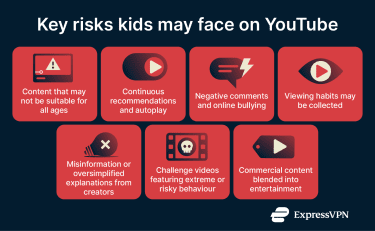
Algorithm-driven risks
YouTube’s recommendation system is designed to keep viewers engaged, but it does not always align with age-appropriate content. YouTube recommends videos based on viewing habits, search history, and broader engagement trends. Children might prefer these recommendations to a manual search.
- Content escalation through recommendations: Recommendation chains can lead from child-friendly videos to louder, more intense, or more emotionally charged clips. Over time, a child may drift toward content that's too scary, upsetting, or mature for their age.
- Autoplay and endless feeds: With autoplay enabled, the next video starts automatically without the child actively selecting it, which may lead to longer viewing sessions. For users aged 13 to 17, autoplay is off by default but can be turned on.
- Highly stimulating: Formats like YouTube Shorts use rapid visuals, quick cuts, and exaggerated effects to hold attention. Kids might prefer these clips because they feel exciting and easy to binge, but the constant stream of fast-paced videos may reduce the likelihood of taking breaks and build impatience with longer, slower-paced content.
- Popularity-driven suggestions: Videos that attract many clicks and watch time (sometimes because they are sensational, extreme, or misleading) are more often promoted. This can push loud, low-quality, or attention-grabbing content to the top of a child’s feed, even if it's not the most appropriate or helpful.
Community comments and cyberbullying
Even when the video itself may be harmless, the surrounding space (especially the comments) can expose kids to negative interactions.
YouTube removes content that's been reported as violating its Harassment and Cyberbullying policies, including posts that target someone, especially a minor, with repeated insults, slurs, threats, or attempts to reveal private information (doxxing). Even so, public comment sections can still be places where bullying or hostile interactions occur, since not all harmful behaviour is caught immediately or reported.
While comment controls are available, not every channel uses them consistently. Unless a video is marked “made for kids,” comments are often fully open and may appear with little or no review before children see them.
Privacy and data collection concerns
YouTube collects information about viewer behavior to personalize recommendations, improve services, and show relevant ads. For children, the primary concern for experts and regulators is not one specific data point, but the long-term profile that can be built about a child's interests, habits, and routines.
- Personalization based on viewing habits: YouTube’s recommendations are driven by “signals” like watch history, search history, channel subscriptions, likes, and dislikes. These signals feed into what appears on the homepage, in Up Next, the Shorts feed, and other personalized sections. For adults, it mostly feels like more relevant suggestions and ads. For children, this contributes to an ongoing profile based on what the system predicts they’ll want to watch.
- YouTube Kids data practices: The YouTube Kids app follows a stricter Privacy Notice that outlines the information it collects, like device type and app activity, which, when combined, can create a behavioral pattern of a child’s media habits.
- Past enforcement actions: Regulators have previously taken action against YouTube over how it handled children’s data, requiring policy changes and stricter safeguards around child-directed content. These cases led to meaningful improvements in how kids’ data is processed. Still, they also highlight that children’s privacy on large platforms remains an area of ongoing regulatory scrutiny.
Misinformation and unreliable sources
Younger viewers are increasingly turning to YouTubers and influencers for opinions on world events, social issues, and day-to-day decisions. Because creators are not vetted as authoritative sources, the information they share may lack context or accuracy.
Research also suggests that children and teens often adopt the viewpoints of creators they follow, which can shape their understanding of current issues.
Challenge videos and risky behaviour
Challenge-style content, ranging from humorous stunts to extreme dare, remains popular on YouTube. Some of these videos emphasize excessive consumerism (such as large shopping hauls), while others involve risky or attention-seeking behaviour.
Children who admire specific creators may view these challenges as entertaining or aspirational, which can influence how they interpret the behaviour.
Exposure to commercialized or promotional content
Commercial content is common on YouTube, and some formats blur the line between entertainment and advertising. For example:
- Integrated product promotion: Videos featuring toy unboxings, candy, or merchandise often blend commercial messages with entertainment, making it difficult for children to identify them as marketing.
- Pre-roll and pop-up ads: Many videos begin with advertisements that play before the skip button becomes available. While personalised ads for under-18s are restricted, general commercial ads may still appear.
YouTube’s built-in safety features
The YouTube app includes several tools that can make a child’s viewing environment more controlled. They can reduce what appears on a child’s recommended feed and adjust how features work, but they don’t eliminate all risks.
Restricted Mode and its limits
YouTube’s Restricted Mode is designed to filter out a broad range of potentially mature content, including explicit language, violence, and other adult themes. It’s disabled by default and must be turned on per device or browser. In some cases, it can also be locked through tools like Family Link or administrative controls to prevent it from being easily changed. You also can’t comment or view the comments section with Restricted Mode enabled.
While Restricted Mode can reduce exposure to specific categories of content, it relies on automated systems and user reports, so it may not always correctly classify every video. As a result, some mature content may still appear, and some appropriate content may occasionally be filtered out.
You can turn on Restricted Mode by clicking your profile picture on the top-right, finding Restricted Mode in the menu bar, and toggling it on.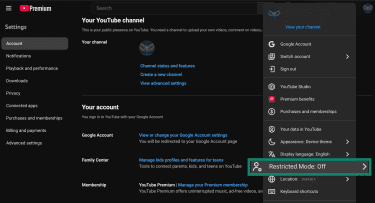
If you’re using YouTube on your phone, tap your profile picture in the bottom-right corner, then tap the cogwheel icon in the top-right to open Settings. From there, go to General or Account and switch on Restricted Mode.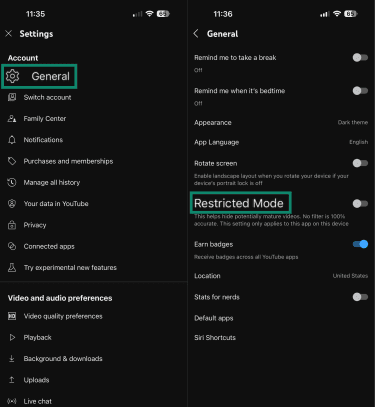
Keep in mind that Restricted Mode only applies to the specific browser or app profile where you enabled it. If your child uses multiple browsers, Chrome profiles, or different devices, you will need to enable Restricted Mode separately on each one.
Note: Menu locations can vary slightly depending on app version or device
Managing watch history and recommendations
Search and watch history are among the primary signals YouTube uses to make recommendations, along with factors like subscriptions, likes, and viewing patterns. If you delete or pause your watch history, or remove specific videos from it, YouTube stops using those entries when suggesting content in the future. Any videos you watch while history is paused also will not feed into the recommendation system.
On the web app, you can change your YouTube history by clicking the three vertical lines, then History. This will open up your watch history. On the right, you’ll see three options: Clear all watch history, Pause watch history, and Manage all history.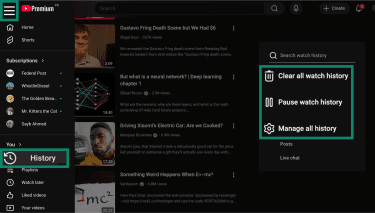
To do the same on YouTube’s phone app, tap your profile picture on the bottom right. Tap View all (next to History). This will open your complete watch history. Tap the three dots icon on the top right, and you’ll see the options to pause, clear, or manage your watch history.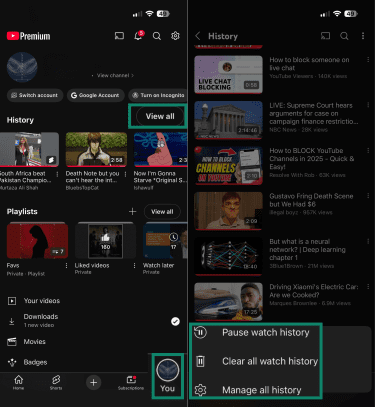
You can also click the three vertical dots next to any video in your feed and choose Not interested to see less of that type of content, or Don’t recommend channel to stop seeing videos from that creator altogether. Both options help train YouTube’s algorithm and gradually reshape what appears on your home page and Up Next.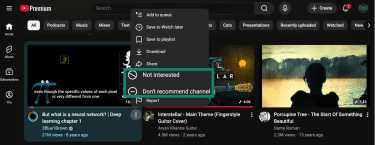
If your child watches a lot of Shorts, you can click Show fewer Shorts from the three dots menu adjacent to the YouTube Shorts row on your homepage.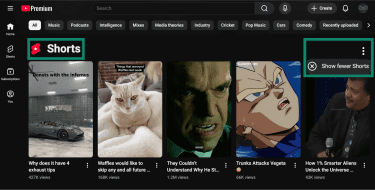
Blocking and reporting tools
Any video, Short, comment, community post, or live chat message can be reported anonymously (without the creator or other users knowing) by using the Report button. You can find this button under the same menu that has the “Not interested” and “Don’t recommend channel” buttons.
When you select it, YouTube asks you to choose the reason that best matches the issue.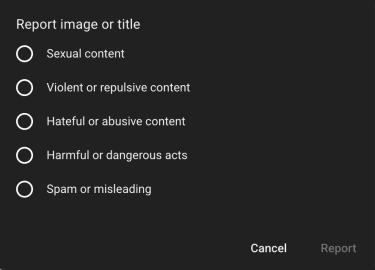
YouTube reviews these reports, and you can check your report history to see what you’ve reported, though YouTube does not provide detailed status updates for each item.
You can also block a user’s channel so they can’t interact with your child through live chat, comments, or mentions. When you block a user, they cannot interact with your account, and they won’t see your messages.
To block a user, click the three dots next to their name in a live chat and select Block. Confirm your choice by clicking Block again on the window that pops up. This will stop the channel from commenting on your posts or mentioning your child’s account, and also hide their comments from your view.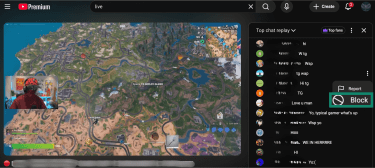
Family Center
YouTube also has a Family Center, which brings several safety tools into one place. There, parents can see and manage YouTube Kids profiles and create new profiles. Parents also have supervised experiences for pre-teens and teens, where they can view shared insights into a teen’s YouTube activity, such as the number of uploads, subscriptions, and comments.
To open Family Center, log into your YouTube account, click on your profile picture, and choose Settings. Under Your account, click Manage kids profiles and features for teens.
Note: YouTube sometimes names this option “Manage supervision” or “Manage kids.”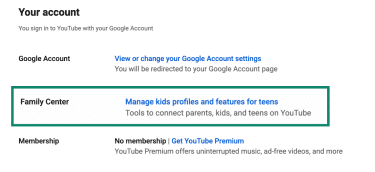
You’ll see all your children’s accounts in a list, including those that use YouTube Kids. If you want to change the content settings for a supervised YouTube account, select that profile, locate Content Settings, and click Edit. From here, you can pick Explore, Explore More, or Most of YouTube based on how much content access you want your child to have.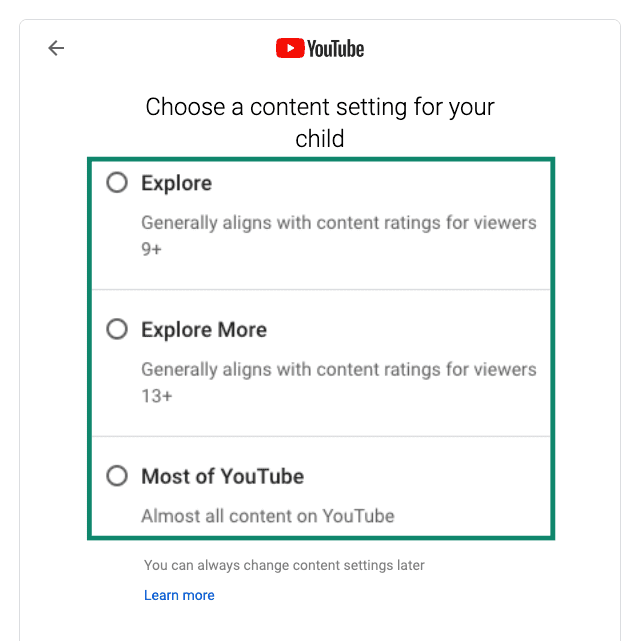
- Explore: Gives access to a fairly limited but broad-based content mix suitable for younger children (roughly age 9+).
- Explore More: Opens up a wider selection of content, including live streams and more mature topics, generally suited to older kids or younger teens (13+).
- Most of YouTube: This gives nearly full access to the regular YouTube catalog (excluding only age-restricted or explicitly 18+ content).
Once you’ve picked a setting, complete the remaining steps to finish setup. While YouTube’s content levels help provide a more curated content pool for your child, they’re not perfect. For families who want a more limited environment, YouTube Kids offers a more narrowly curated set of videos.
Is YouTube Kids safe?
YouTube Kids offers a controlled media environment for younger viewers, with a library built around child-focused content. Even so, the system isn’t flawless since not every video is reviewed by a human.
Children don’t create their own YouTube Kids accounts. Instead, a parent signs in with their own Google Account and sets up one or more child profiles. To get started, visit YouTube Kids and select I’m a parent.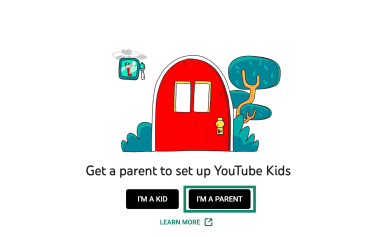
Click Next and enter your birth year to confirm you’re an adult. You’ll then be asked to sign in with your Google Account to create a parent profile, which you’ll use to add and manage your child’s profiles.
Note: YouTube Kids is also available as a mobile app.
Major differences from regular YouTube
YouTube Kids is designed for children 12 and under. It has its own rules and content pool. Here are the major differences between the two:
- Smaller library: YouTube Kids has a smaller catalog than YouTube's main channel. The content is limited to videos that pass YouTube Kids’ policies and filters.
- Age-based content settings: You can choose a content setting for each child profile on YouTube Kids: Preschool, Younger, or Older, each having different types of content appropriate for each age.
- Profiles instead of full channels: Unlike regular YouTube, where you can have an account, YouTube Kids has child profiles. A parent can create up to 8 profiles, each with its own viewing preferences and recommendations.
- Different advertising rules: YouTube Kids allows a limited set of paid ads that are clearly marked as ads and preceded by an introductory bumper. These ads are contextual and not personalised based on a child’s activity. Specific advertising categories, such as some food and beverage promotions, aren’t allowed.
Customizing parental controls and profiles
Parents can set up parental controls in YouTube Kids directly in the app. To do that, sign into YouTube Kids, click the lock icon on the top right, and enter the answer to the multiplication problem (or your passcode if you’ve set that up).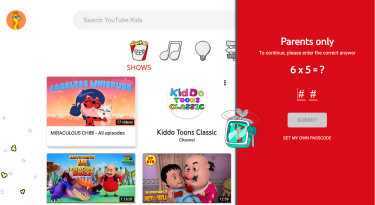
This opens the Settings menu, where you can set up parental controls. Click the child profile you want to edit privacy controls for, then enter your Google account password. Once verified, the Settings panel will open, where you can set age-based content settings, turn search on or off, and manage watch history.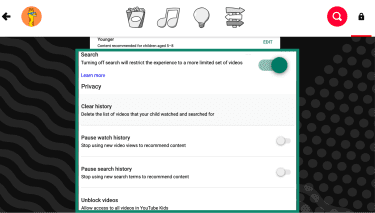
Turning off the Search toggle will disable the search bar on the YouTube Kids homepage, so your child won’t be able to search videos themselves. It also clears existing activity for that profile. Pausing history stops new searches and watched videos from influencing recommendations, though earlier activity may still affect what appears unless you clear it; you need to clear "watch history" separately.
You can also choose to approve content yourself for stricter control. To do this, you’ll need the YouTube Kids phone app. Open the app, tap the cogwheel icon, solve the multiplication problem (or enter your passcode), and tap Next. This will open up the Settings menu.
Tap the child’s profile you want to edit and enter your Google account password. Under Content settings, tap Edit Settings > Approve content yourself > Select.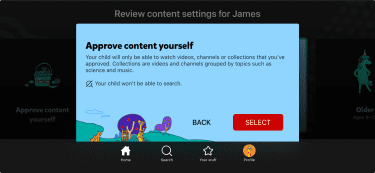
You’ll now be able to approve specific channels whose content you want shown on your child’s feed. Tap Start, then find the collections or channels you want to approve. Each collection has several channels. To approve a collection or channel, tap the + icon beside the channel name.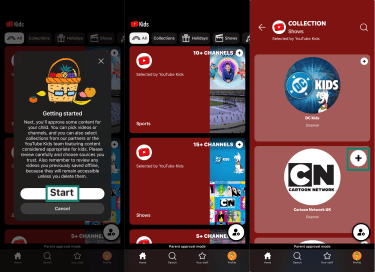
Another setting you’ll find on the YouTube Kids phone app is the Set Timer feature. This can limit how long the app remains available before it locks itself. Once the timer runs out, your child will be locked out of the app. You can find this tool in Settings > Set Timer > Set time limit.
Age-appropriate content explained
YouTube Kids organizes its library into content settings aligned with different age groups. Each level provides access to a distinct set of themes and video types.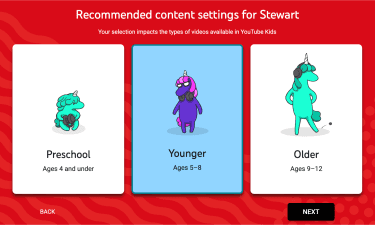
- Preschool (4 and under): Focuses on gentle, straightforward content such as songs, storytelling, beginner learning, and calm play-based videos. Only very mild imaginative themes appear, with no strong emotional or graphic elements. However, even in Preschool mode, automated filters may not be perfect.
- Younger (5–8): May include simple learning videos, creative activities, family-friendly vlogs, music, and some gaming content that meets YouTube Kids' policies. Topics may include mild humor, basic action, or simple historical or educational concepts.
- Older (9–12): Includes a broader range of content, such as more diverse gaming, sports, music, and educational videos. Some material may reference growing-up themes in age-appropriate ways, and mild language or non-graphic animated/gaming violence may appear.
Practical safety tips for parents
Even with filters, labels, and reporting tools in place, many YouTube risks relate to how children use the platform day to day, such as when and where they watch and how they interact with content. Platform tools can help shape what appears, but they do not eliminate all risks.
Setting up parental controls on devices
For families using supervised Google Accounts, the Google Family Link app offers a way to manage device and account settings. When a child signs into YouTube with a supervised account, parents can adjust YouTube-related restrictions within Family Link.
To manage YouTube in Family Link, open the app, select your child’s profile, and tap Controls > Content restrictions > YouTube. Then choose Settings (or YouTube settings) and, under Content settings, pick the level that fits your child: Explore, Explore More, or Most of YouTube (the same content levels you set in Family Center).
Family Link manages the supervised Google Account and device-level controls, while Family Center provides additional settings specifically for YouTube.
Reviewing watch history regularly
Some families find it helpful to review a child’s watch history together to understand what they’ve been watching. Patterns in history, new interests, changes in themes, or unexpected videos may open opportunities for casual conversation about what children enjoy, what feels confusing, or what they didn’t expect.
Using other third-party tools to enhance safety
YouTube’s internal controls apply to the app or a signed-in account. They may not cover situations where a child switches devices, uses a different browser, or accesses YouTube from an unsupervised account. Some families choose to add third-party tools to ensure extra consistency across devices.
Device-level controls can enforce limits regardless of which Google Account is active. When parents set per-app timers, scheduled downtime, or app-specific blocks at the operating system level, those restrictions apply to the entire device.
Network-level controls can block access to certain websites or categories before a browser or app loads them. This applies even if a child uses private browsing or isn’t signed in, though app-based access may still work unless the domain is restricted.
Talking to your kids about online safety
Conversations about what children watch can naturally arise during daily routines. When kids share what they’re viewing or how they feel about it, it can provide insight into what they find enjoyable, confusing, or upsetting.
These conversations help kids better understand how platforms handle sensitive or mature material, and how adjusting sensitive-content settings filters influence what appears in their feeds.
FAQ: Common questions about YouTube safety
Is YouTube safe for children under 13?
YouTube isn’t designed for children under 13, and while it offers safety features, supervised accounts, and the separate YouTube Kids app, these tools don’t remove all risks. Children may still encounter inappropriate videos, overly commercial content, misinformation, or recommendations that lead to more mature material. YouTube Kids provides a more limited, child-focused environment, but its filters aren’t perfect either.
Can harmful content bypass YouTube filters?
Yes, YouTube’s built-in safety features, like Restricted Mode and automated filters, reduce exposure to mature content, but they don’t block everything. Age restrictions apply to videos marked as such by creators or flagged by YouTube’s automated systems. YouTube Kids also relies on systems that may miss some uploads, meaning inappropriate content might occasionally appear.
What’s the difference between YouTube and YouTube Kids?
YouTube Kids is a separate, simplified environment built for children 12 and under, with curated content and parent-managed settings. Regular YouTube is a general-audience platform for users 13+ and includes broader content, public features, and optional supervised experiences.
How can I tell if a YouTube video is child-safe?
On regular YouTube, “made for kids” videos are labeled as such by the creator or YouTube’s systems. They disable comments, personalized ads, and some interactive features. Visual cues like titles, thumbnails, and themes may suggest a video is intended for kids, but they are not reliable indicators of safety.
YouTube Kids or a supervised account provides a more limited and child-focused environment, and some parents choose to preview videos or channels themselves before allowing independent viewing.
Should I use parental control apps alongside YouTube Kids?
Some families use parental control apps alongside YouTube Kids to manage devices or screen time across multiple apps. YouTube Kids itself includes tools like content approval and a built-in timer.
Take the first step to protect yourself online. Try ExpressVPN risk-free.
Get ExpressVPN